How to hide apps on Android: built-in ways on Pixel, Samsung, Xiaomi
How to hide apps on Android depends on your phone: Samsung and Xiaomi let you hide any app’s icon from the Home screen and app list in a few taps, while Pixel phones on Android 15 and later hide apps inside Private space, behind a separate lock. None of these need an extra app.
Hiding an app keeps it out of sight. It is not a lock, and anyone who opens Settings can usually still see the app is installed. Below are the steps for each phone, how to find hidden apps, and the limits.
Can you hide apps on Android without disabling them?
Yes. This table shows how to hide apps on Android with what each phone already has, and none of them disable the app. Disabling is a different thing, covered further down.
| Phone | Built-in way to hide apps | Lock on the hidden apps? |
|---|---|---|
| Pixel and other phones on Android 15+ | Private space, hidden when locked | Yes |
| Samsung Galaxy | Hide apps (Home screen settings) | No |
| Samsung Galaxy | Secure Folder with its icon hidden | Yes |
| Xiaomi | Hide apps (Security app) | No |
| Motorola | Secure folder in Stealth mode | Yes |
If you want an app to ask for a PIN rather than vanish, see how to lock apps on Android.
How to hide apps on Android with Private space
Private space is a separate, locked area for apps. Pixel phones had no official way to hide apps until Android 15 (Android Authority). Google’s steps (Pixel Phone Help):
- Open Settings > Security & privacy > Private space and confirm your screen lock.
- Tap Set up, then Got it. Signing in to a Google Account is optional.
- Choose a lock: your screen lock, or a new one.
- Install the apps you want inside Private space. Google says app data can’t be moved in from your main space.
- To hide the space itself, unlock it in All apps, tap its settings icon and turn on Hide private space when it’s locked.
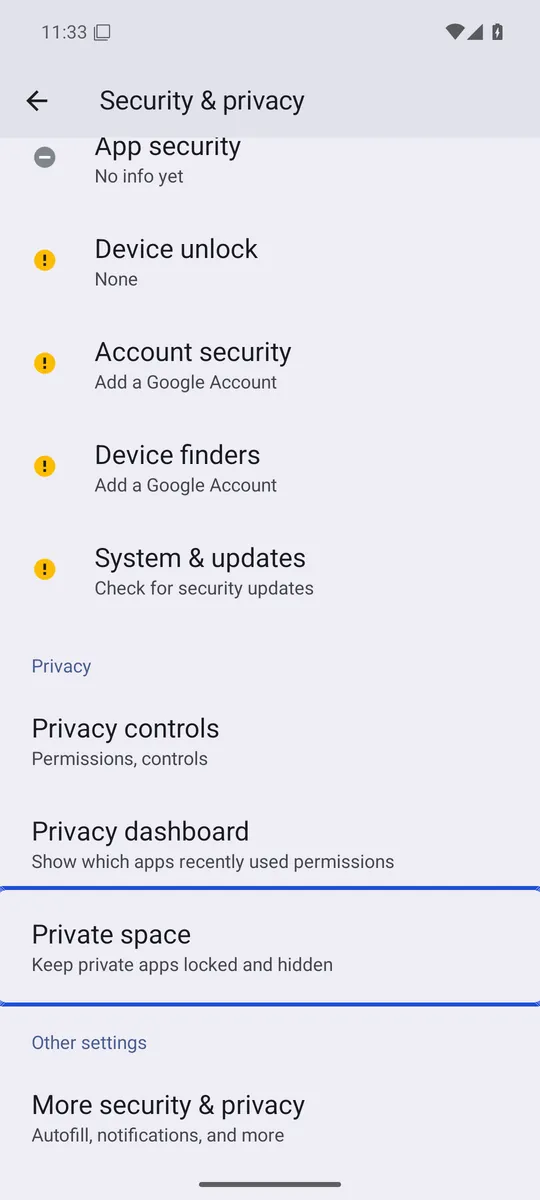
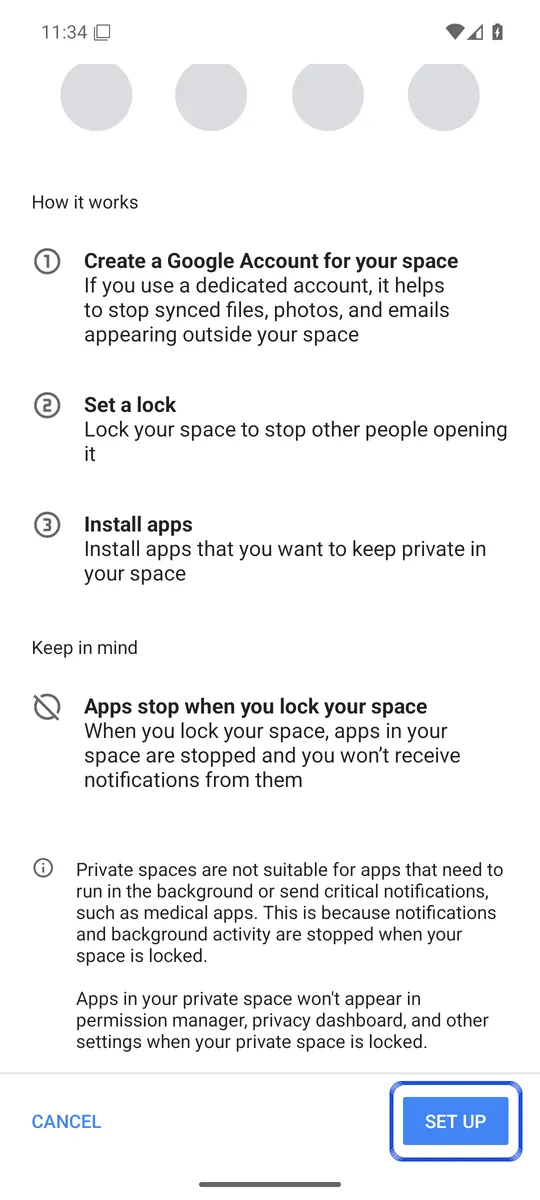
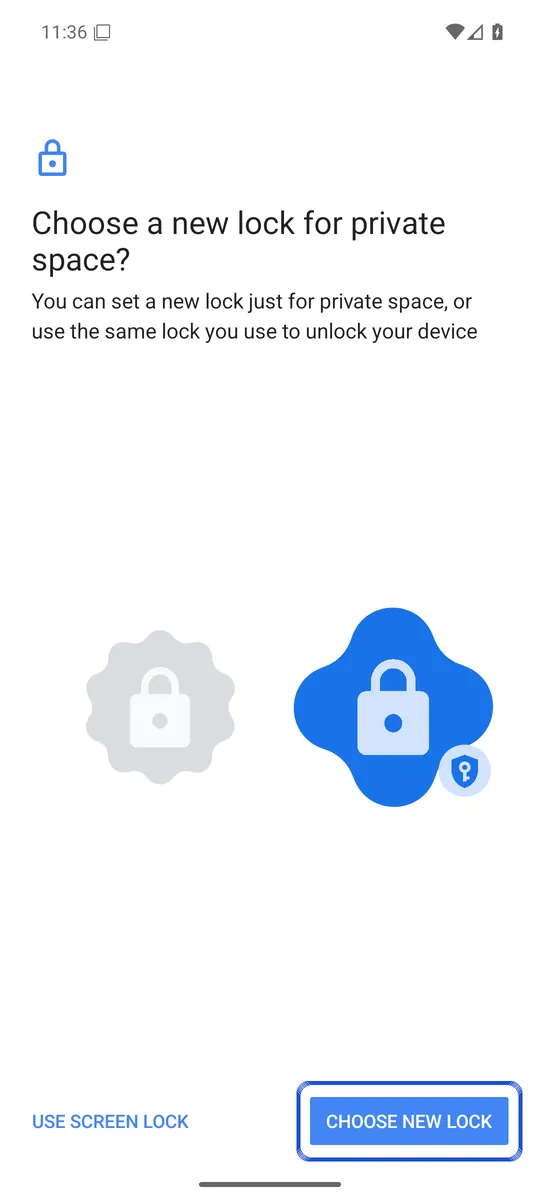
Screenshots: Android 16 emulator (Google APIs), captured 6 October 2026. Your phone maker's menus may look different.
Google says a locked Private space is hidden from the launcher, recent apps, sharing, Settings and search, and its apps are stopped, so they can’t send notifications. To open it again, go to Settings > Security & privacy > Private space. Phone makers can turn the feature off, and a forgotten Private space lock can’t be recovered. More in our Private space guide.
How to hide apps on Samsung Galaxy phones
Samsung’s steps (Samsung Australia):
- Touch and hold an empty part of the Home screen.
- Tap Settings, then Hide apps. On some One UI versions the entry reads Hide apps on Home and Apps screens (Guiding Tech).
- Tap the apps you want to hide, then Done.
To unhide an app, go back to the same list, tap the red minus next to it, then Done.
This hides the icon only. For a hidden app behind a lock, add it to Secure Folder (open Secure Folder, tap the plus icon, pick apps, tap Add), then hide the folder: Settings > Security and privacy > More security settings > Secure Folder, turn off Add Secure Folder to Apps screen and tap Hide (Samsung UK). Samsung notes that adding an installed app makes a copy, so uninstall the original if you want the app only inside. Photos have their own steps in how to hide photos on Samsung.
How to hide apps on Xiaomi phones
Xiaomi’s steps (Xiaomi support):
- Open the Security app.
- Scroll down and tap Hide apps.
- Turn on the switch next to each app you want to hide.
Xiaomi says hidden apps are not uninstalled, only removed from the Home screen and app drawer. To see them, place two fingers on the Home screen and spread them apart (Xiaomi support). Xiaomi’s pages don’t say this gesture asks for a password. For the Gallery side, see how to hide photos on Xiaomi.
How to hide apps on Motorola phones
Motorola hides apps through Secure folder, set up in the Moto Secure app or under Settings > Security & privacy > More security & privacy (Motorola help):
- Open Secure folder and choose a pattern, PIN or password.
- Tap the plus icon > Add apps, tick the apps and confirm.
- Tap the menu icon > Stealth mode, turn it on and choose to hide the folder from the app tray, the Moto Secure app or both.
To reach it while hidden, open Moto Secure or the same Settings path. Motorola says that if you forget the folder’s lock, you have to delete the folder and everything in it.
Should you disable apps to hide them?
Only for apps that came with the phone and that you don’t use. Android says disabling hides an app from the Home screen and stops it from running or updating, while keeping it on the phone so you can turn it back on later (Android). The usual path is Settings > Apps, pick the app, then Disable. Some critical system apps have the option greyed out (Guiding Tech). A disabled app doesn’t work, so disabling is not how to hide apps on Android that you still want to use.
How to find hidden apps on Android
Hidden is rarely invisible. Our free hidden apps finder walks through each place step by step for your phone. Avast lists these places to check, shown on a Samsung phone (Avast):
- Settings > Apps: lists installed apps, including hidden ones. Turn on Show system apps in the filter to see everything.
- App list search: on Samsung, typing a hidden app’s name still finds it.
- Google Play: profile icon > Manage apps & devices > Manage lists apps installed from Play.
On Xiaomi, the two-finger spread above shows hidden apps. A locked and hidden Private space doesn’t appear in the app list or Settings.
What hiding apps on Android does not protect
Hiding apps on Android removes a shortcut. It doesn’t encrypt the app or its files. Google says even a hidden Private space can be detected by someone who installs apps on your phone, by someone with a computer connected to it, by other apps and in device logs (Pixel Phone Help). A hidden icon on Samsung or Xiaomi has no lock at all.
If what you want to keep private is photos, hide the photos, not the app. Our guide on how to hide photos on Android compares the options by how much they protect, and calculator vault apps explains why a disguised app is not the same as encryption. Lockspeare is one option that encrypts each photo on the phone and opens with its own PIN or pattern; its disguised icon is a convenience, not protection.
Common questions
How do I hide apps on my phone without disabling them?
Use your phone's own hide option. Samsung's Home screen settings and Xiaomi's Security app take the icon off the Home screen and app list without uninstalling or disabling the app. On Android 15 and later, Private space hides apps behind their own lock.
How do I find hidden apps on Android?
Open Settings > Apps for the full list of installed apps, including hidden ones. Searching the app list also finds apps hidden on Samsung phones. On Xiaomi, spread two fingers apart on the Home screen to show hidden apps.
Can someone see apps I've hidden on Android?
Usually yes, if they know where to look. Icons hidden with a phone's hide option still show in Settings > Apps, and Google says even a hidden Private space can be detected, for example by someone using a computer connected to the phone.
Does hiding an app delete its data?
No. Xiaomi says hidden apps are not uninstalled, only removed from the Home screen and app drawer. Disabling an app also keeps its data, but the app stops working until you turn it back on.