Private space Android guide: set it up, add photos, know its limits
Private space on Android is a separate, hidden area (Android 15 and later) where you can keep sensitive apps and files behind a lock, which can be different from your screen lock. When it is locked, its apps are stopped and hidden from your app list, recent apps, notifications and the Android photo picker.
It is a good, free option for many people. But it has no backup and no recovery, and Google says plainly that other people and apps can find out it exists. Here is how it works, how to set it up, and where its limits are.
What is Private space on Android?
Private space is built on Android’s multi-user system. It is a separate profile, much like a work profile, with its own copies of apps (Android Open Source Project). Your photos, files and accounts in it are kept apart from your main space. Apps outside it can only get content from inside through the share sheet or the photo picker, and only while it is unlocked.
When you lock it, Android stops every app in it. Those apps cannot run in the foreground or background, and they cannot show notifications (Android Developers). That is also why Google warns that it is not a good place for apps that must send important alerts, such as medical apps.
Which phones have Private space on Android
Google lists these requirements (Android Help):
- Android 15 or later.
- The phone is not managed by an employer or school.
- There is no supervised account signed in on the main space.
- No more than 4 users or profiles on the phone.
- Only the main user can create it, not guests or secondary users.
Google publishes the same instructions for Pixel phones (Pixel Phone Help). It also notes that a phone maker or an enterprise admin can disable it. Samsung Galaxy phones use their own Secure Folder instead (WhistleOut); see how to hide photos on Samsung for the Galaxy options. On a Pixel, Private space sits alongside Locked Folder in Google Photos; see how to hide photos on Google Pixel.
How to set up Private space on Android
These are the steps on Google’s help page (Android Help). Menu names can differ slightly between phone makers.
- Open Settings.
- Tap Security & privacy.
- Under Privacy, tap Private space.
- Confirm with your screen lock.
- Tap Set up, then Got it.
- Choose Use device screen lock or Choose new lock.
- Tap Done.
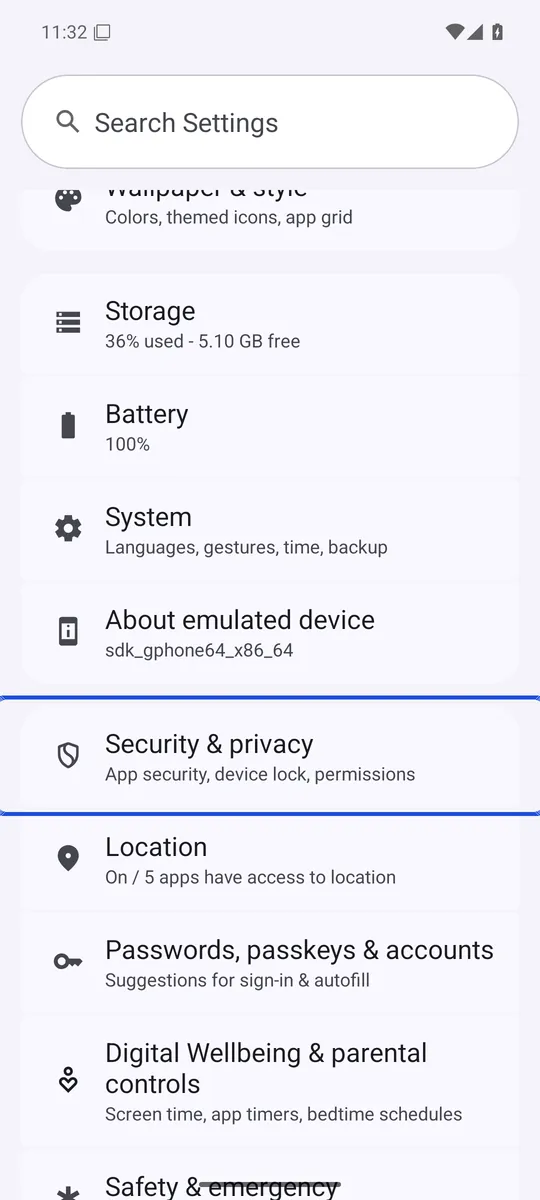
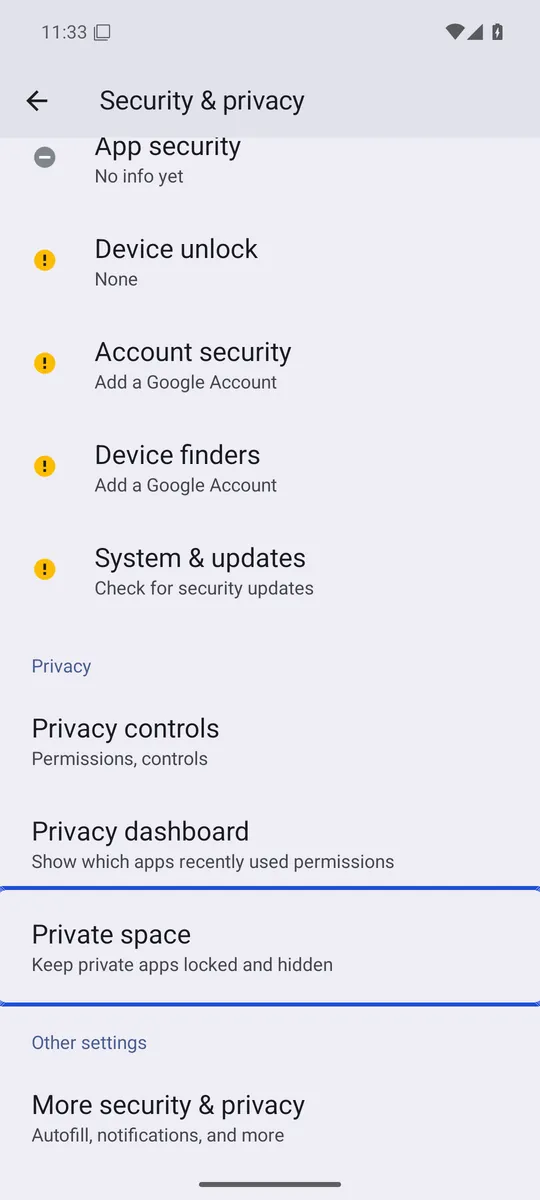
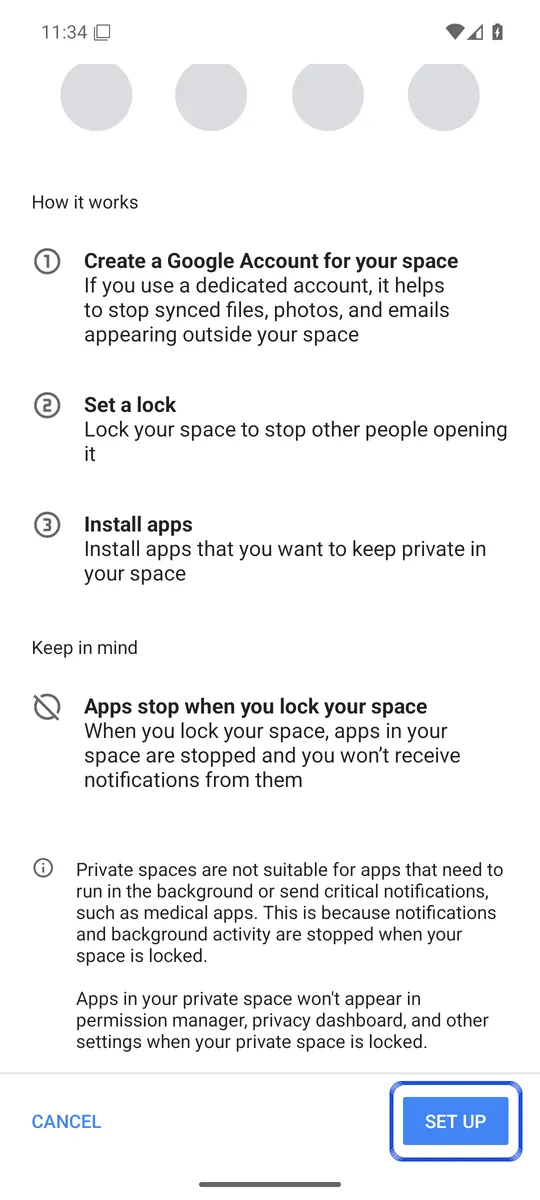
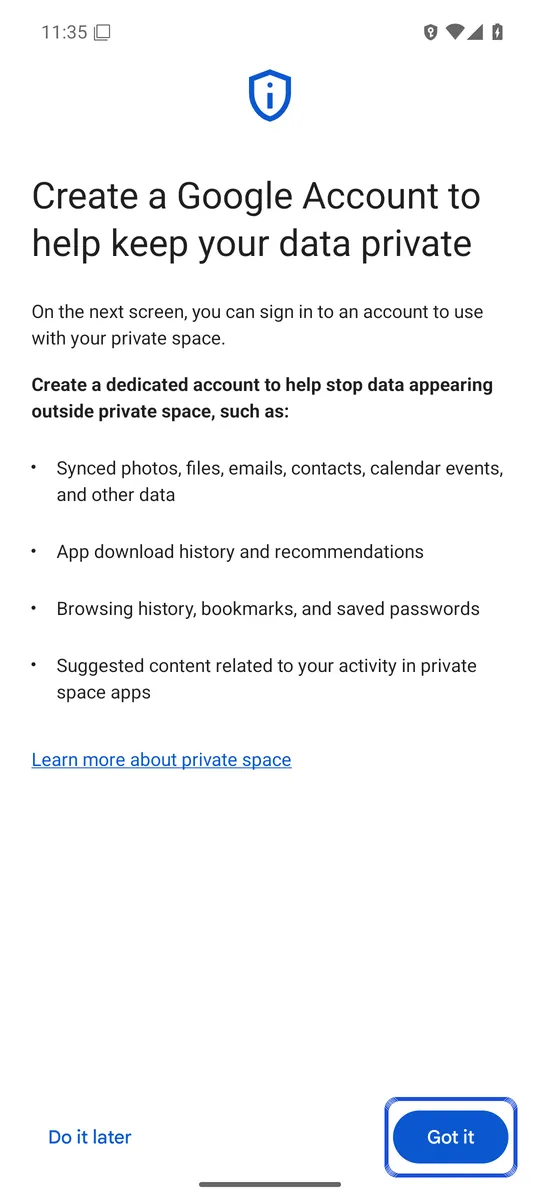
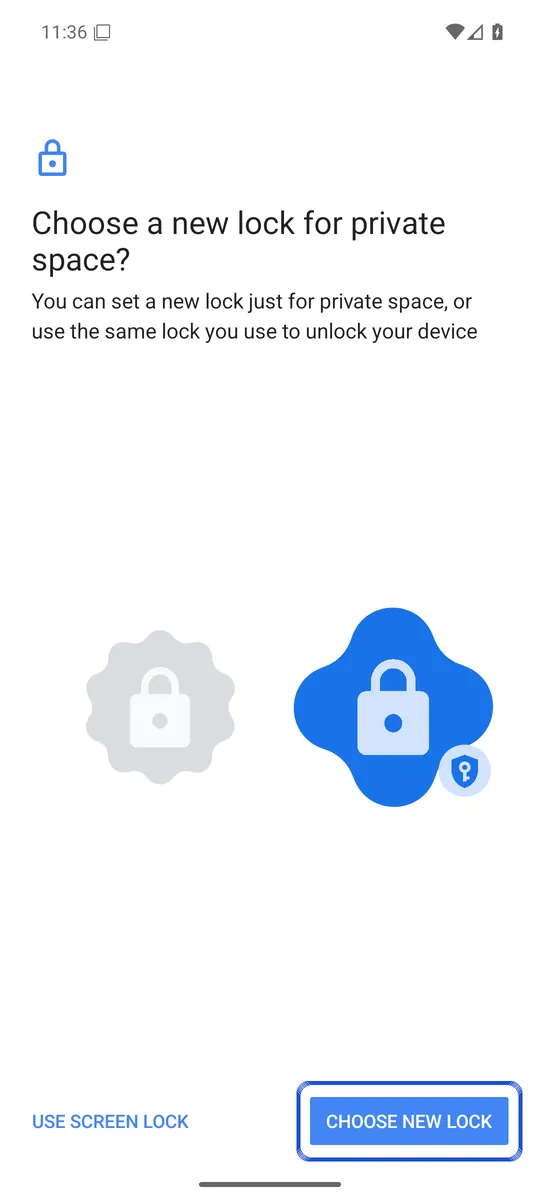
Screenshots: Android 16 emulator (Google APIs), captured 6 October 2026. Your phone maker's menus may look different.
Choose a new lock. If Private space opens with the same PIN as your phone, anyone who knows your screen lock can open it too.
During setup you can sign in to a Google Account. Google recommends a dedicated account that is not signed in anywhere else, to help prevent unexpected leaks to your main space. On android.com, Google adds that a separate account keeps your private browsing history, bookmarks and search suggestions out of your main apps (Android).
How to add apps and photos to Private space
Apps. Touch and hold an app in your app list and tap Install app in Private space, or open Private space and tap Install (Android Help). It installs a separate copy. Data from the copy in your main space does not move over (Android Open Source Project).
Photos and files. On Android 16 QPR2 and later, open Private space, tap Add, then Add files, and pick files with the system file picker (Android Open Source Project). You then choose:
- Copy: the original stays in your main space.
- Move: the original is deleted after a successful transfer.
Google’s help page says added files go to the Downloads folder inside Private space. If your phone is on an older version, there was no direct way to move existing files in. Android Police describes the workarounds: take photos with the Camera app inside Private space, or upload them through Google Photos on the web and open them in the Google Photos app inside Private space (Android Police). The “Add files” option first appeared in testing builds in 2025 (Android Authority).
If you choose Copy, the original is still in your gallery. If you delete it there, it may sit in your gallery’s trash for a while. See why deleted photos may still be on your phone.
How to hide and lock Private space
To hide the Private space entry when it is locked (Android Help):
- Open your app list and scroll to Private space.
- Tap it and unlock it.
- Tap Settings.
- Under Hide, turn on Hide private space when it’s locked.
You can lock it at any time by tapping Lock in the Private space container. In its settings, Lock private space automatically offers three choices: Every time device locks, 5 minutes after screen timeout, or Only after the device restarts. “Every time device locks” is the safest.
What Android Private space does not protect
Google’s own help page lists the limits (Android Help):
- No backup. On-device data in Private space is not backed up, and Private space is not restored when you set up a phone from a backup.
- No recovery. If you forget its lock, you cannot get back in. Deleting Private space deletes its apps and data with no backup.
- Not fully secret. Google says its existence can be uncovered with a computer (adb commands), device logs or by apps.
- VPN bypass. Apps in Private space bypass your VPN.
- Some sharing is off. It cannot receive Quick Share or Bluetooth transfers.
There is one more thing to keep in mind. The Google pages linked here describe Private space as a separate, hidden profile behind a lock. They do not describe any extra encryption for the files in it.
Private space vs Locked Folder vs Secure Folder
| Feature | Private space | Google Photos Locked Folder | Samsung Secure Folder |
|---|---|---|---|
| Holds apps | Yes | No, photos and videos only | Yes |
| Its own lock | Optional | No, uses your screen lock | Yes |
| Backup | No | Optional | No longer supported |
Sources: Google Photos Help and Samsung for the last two columns. More detail in Is Google Photos Locked Folder safe?.
When to use something else instead of Private space
Private space is a good fit for hiding a few apps behind a separate lock, as long as you do not need their notifications while it is locked. For other ways to do that, see how to lock apps on Android.
For photos, the missing backup is the biggest risk: lose the phone and the photos in Private space are gone. If that matters to you, look for an option that encrypts each photo and can back it up in encrypted form. Lockspeare encrypts each photo and has its own PIN or pattern and a recovery phrase. It can also save a vault as one encrypted backup file that opens only with that phrase, so you can keep a copy off the phone. Our guide to hiding photos on Android compares all the options by how well they protect your photos.
Common questions
Which phones have Private space?
Phones running Android 15 or later, such as Pixel phones, unless the phone maker or an enterprise admin has turned it off. Samsung Galaxy phones use their own Secure Folder instead.
Can I move existing photos into Private space?
On Android 16 QPR2 and later, yes. Open Private space, tap Add, then Add files, pick the files and choose Copy or Move. Move deletes the original after the transfer. On older versions you had to take photos with the Camera inside Private space or upload them through Google Photos on the web and open them in the Google Photos app inside Private space.
What happens if I forget my Private space lock?
Google says you will not be able to access the space, and there is no way to recover the unlock factor. You can delete Private space and start again, but its apps and data are deleted with no backup.
Is Private space backed up?
No. Google says on-device data in Private space is not backed up, and Private space is not restored when you set up a phone from a backup. Anything you only keep there is lost if the phone is lost, reset or replaced.
What happens if I delete Private space?
Its apps and data are deleted, and Google says there is no backup to restore them from. You can set up a new, empty Private space afterwards.