How to check if someone used my phone on Android
How to check if someone used my phone on Android comes down to the traces Android keeps by itself: Digital Wellbeing (screen time and unlocks), notification history (the last 24 hours), the privacy dashboard (camera, microphone and location use), Chrome history and the devices list in your Google Account. None of them names a person; they show that the phone was used, when, and for what.
None of these needs an extra app. Menu names below come from Google’s and Samsung’s help pages and can differ slightly by phone.
How to check if someone used my phone: where Android keeps traces
| Place | What it shows | How far back | Where to find it |
|---|---|---|---|
| Digital Wellbeing | Screen time per app, times the phone was unlocked, notifications per app | Today’s chart first; Google doesn’t say how far back | Settings > Digital Wellbeing |
| Notification history | Notifications that arrived or were dismissed | Last 24 hours, only if turned on beforehand | Settings > Notifications > Notification history |
| Privacy dashboard | Which apps used the camera, microphone, location and other permissions | 7 days (Android 13+), 24 hours (Android 12) | Settings > Security and Privacy (or Privacy) > Privacy dashboard |
| Chrome history | Sites visited, except in Incognito | 90 days | Chrome > More > History |
| Google Account | Devices and browsers signed in to your account, with last activity | Last few weeks | myaccount.google.com > Security & sign-in > Manage all devices |
Sources: Digital Wellbeing, notification history on Pixel, privacy dashboard, Chrome history, Google Account devices.
How to check if someone used my phone with Digital Wellbeing
Digital Wellbeing is the quickest answer to how to check if someone used my phone, because it is already counting. Google’s steps (Android Help):
- Open Settings and tap Digital Wellbeing (on our Android 16 emulator the entry reads Digital Wellbeing & parental controls). If you don’t see it, Google notes it is available only on some phones.
- Look at the chart: it shows today’s use. Tap it for more detail.
- Check Screen time (which apps were on screen and for how long), Times opened (how often the phone was unlocked and apps were opened) and Notifications received.
- For websites, tap the chart, then Chrome, then Show sites.
An app you never open showing up with screen time, or more unlocks than you remember, is the sign to look for. The dashboard does not say who held the phone.
How to see notifications someone opened or dismissed
If a message arrived and someone read and swiped it away, notification history still lists it. It only records from the moment you turn it on, so turn it on now even if it’s too late this time.
On a Pixel (Pixel Phone Help):
- Open Settings > Notifications > Notification history.
- Turn on Use notification history.
- To read it later, swipe down from the top of the screen, scroll to the bottom of the notifications and tap History.
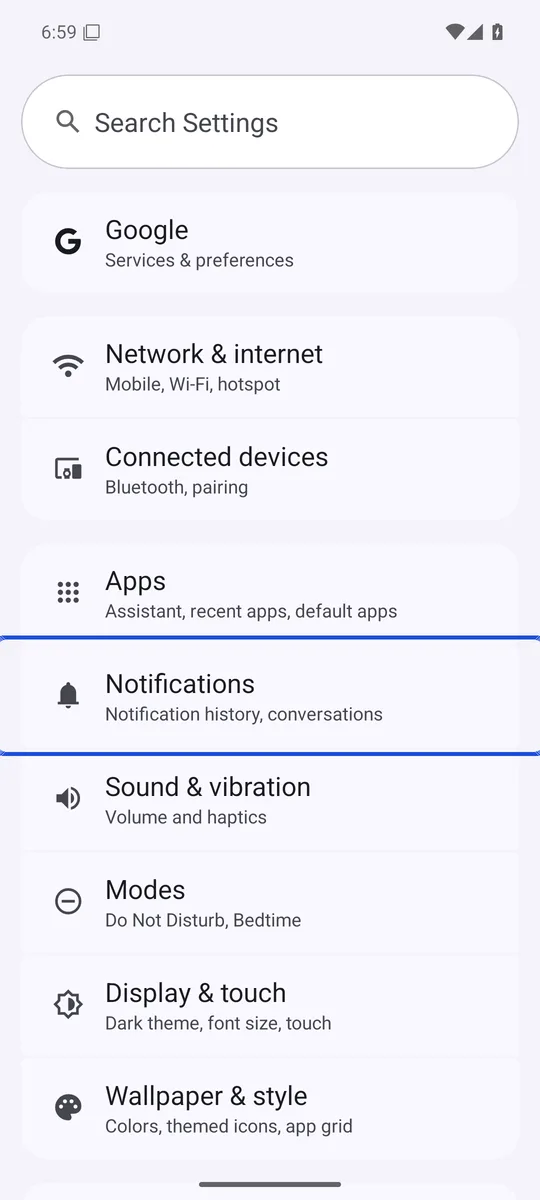
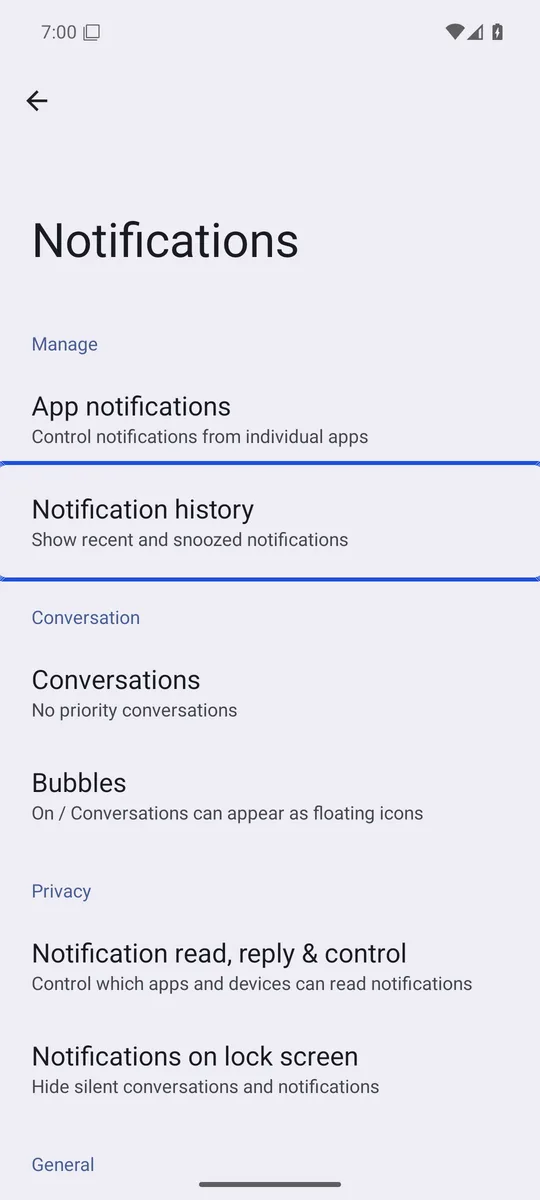
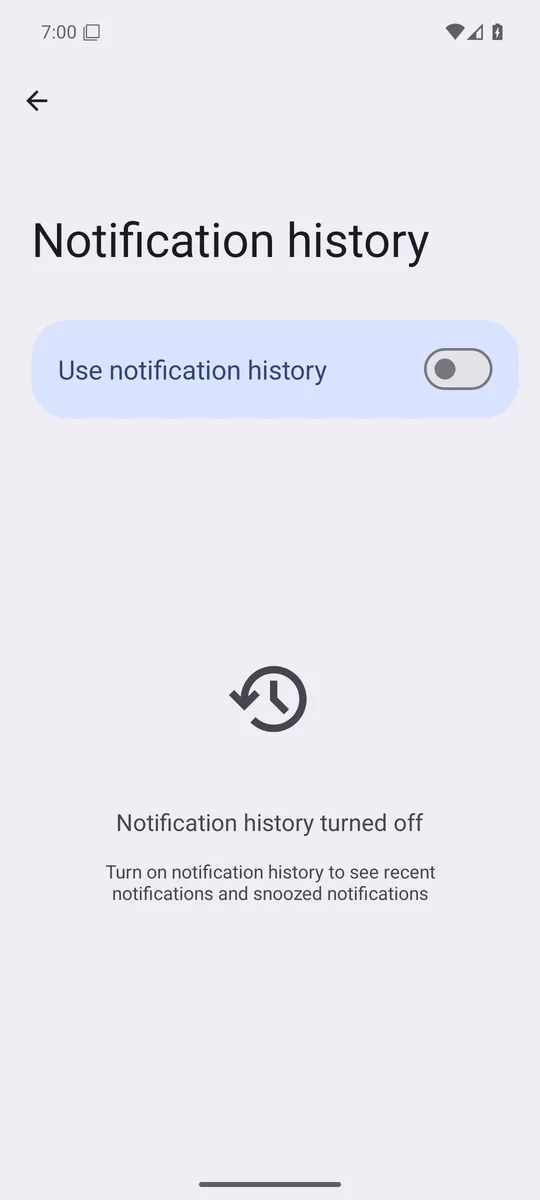
Screenshots: Android 16 emulator (Google APIs), captured 17 November 2026.
The phone keeps the dismissed notifications of the last 24 hours. Android lets phone makers decide whether to include the feature, and turning it off deletes everything it recorded (Android Open Source Project), so someone who knows your PIN can erase it.
On a Samsung Galaxy, open Settings, go to Notifications, open the advanced settings and turn on Notification history. Samsung lists the Galaxy S24, S25 and S26 series, the Z Fold and Z Flip series and A series phones such as the A15 and A25, and says some apps’ notifications may not be stored (Samsung).
Check if someone used your phone’s camera, microphone or location
The privacy dashboard shows which apps used a permission and when. Google’s steps (Android Help):
- Open Settings and tap Security and Privacy or Privacy (on some phones, Privacy again; on Android 16 the dashboard is listed directly under Security & privacy).
- Tap Privacy dashboard.
- Tap a permission, such as Camera, to see which apps used it.
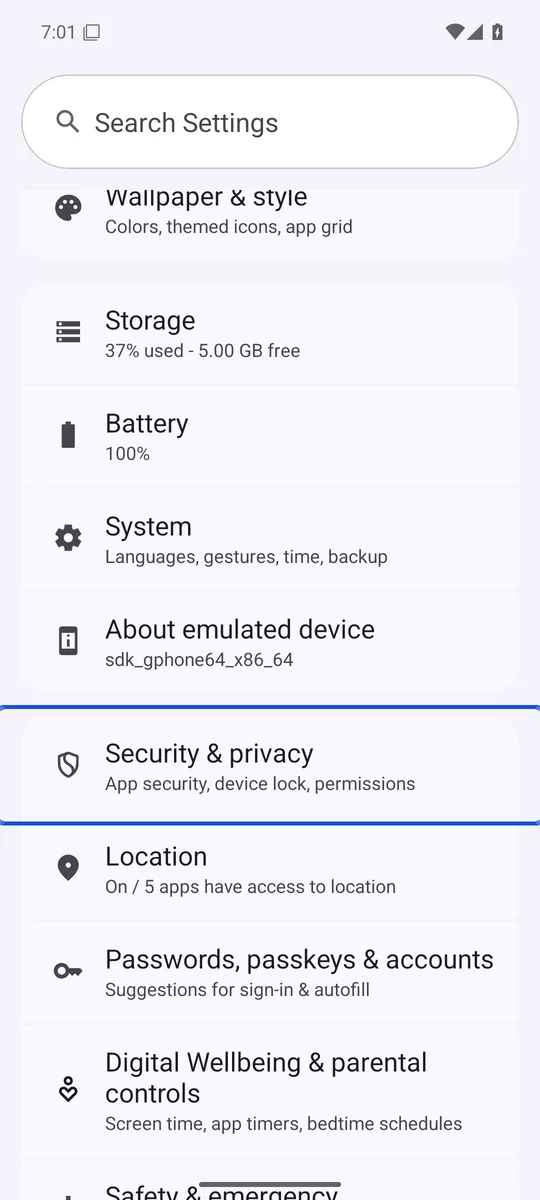
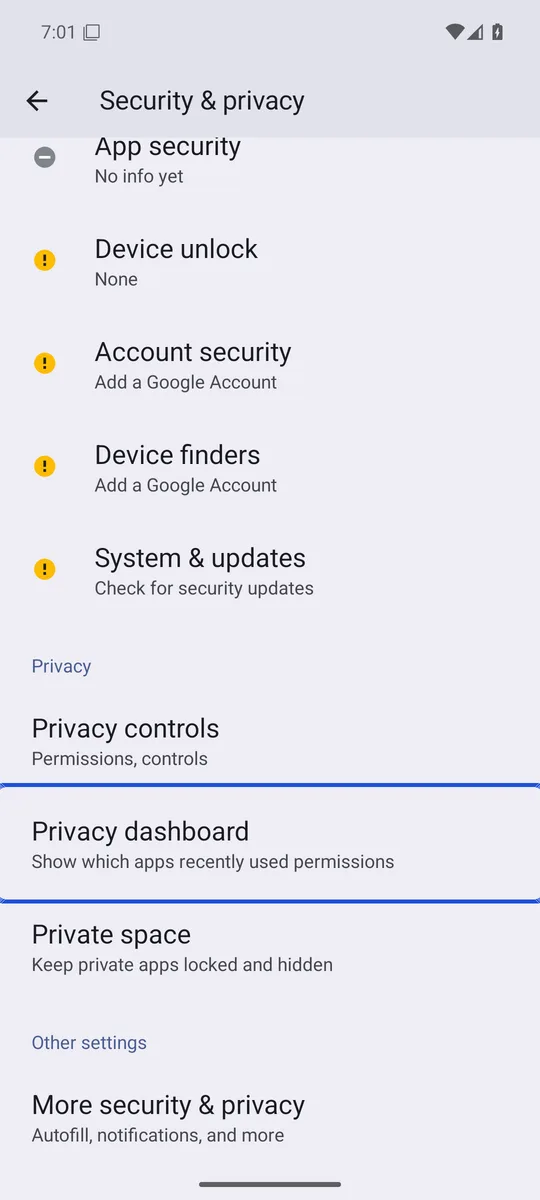
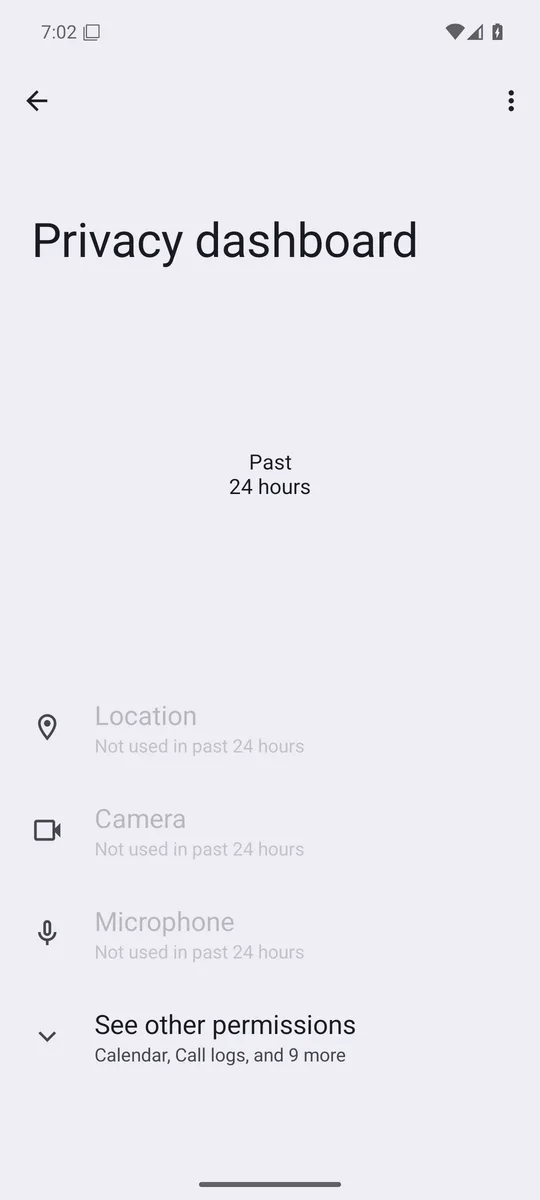
Screenshots: Android 16 emulator (Google APIs), captured 17 November 2026. Here the dashboard opened on the past 24 hours.
It covers the last 7 days on Android 13 and later and the last 24 hours on Android 12. A camera or microphone use at a time you weren’t holding the phone is worth a closer look. Our Android photo picker guide explains what photo access an app actually gets.
Browser history, new apps and your Google Account
- Chrome history. Tap More (three dots), then History. It covers the last 90 days, but pages opened in Incognito are never saved, and if you sync Chrome it also shows pages from your other devices (Chrome Help).
- Apps you didn’t install. In Google Play, tap your profile icon, then Manage apps & device > Manage. Switch the filter to Not installed to see apps that were installed and removed (Google Play Help). Apps can also be hidden from the home screen; our guide on how to hide apps on Android shows where each phone keeps them.
- Devices on your Google Account. Go to myaccount.google.com, select Security & sign-in, then Manage all devices. Look for a device, place, time or browser you don’t recognize, and sign it out. The time shown can be later than the last real use, because background sync also counts (Google Account Help).
- My Activity. At myactivity.google.com you can filter by date and by Google product, but only for activity your account saves, and some Google products don’t save any there (Google Account Help).
If you think someone deleted photos, look in the gallery’s trash first; our guide to the Android photo trash explains how long each app keeps them.
Why someone used your phone without your PIN: Extend Unlock
If the traces are there but you’re sure nobody knows your PIN, check Extend Unlock (formerly Smart Lock). It keeps the phone unlocked for up to 4 hours at a time while it senses it’s on your body, at a trusted place such as home, or connected to a trusted Bluetooth device. Google warns that a trusted place can reach about 100 meters beyond your home and that someone who takes the phone near a trusted device may get in (Android Help).
To review it: Settings > Security & privacy > More security & privacy > Extend Unlock, enter your PIN, then turn off what you don’t need. To lock the phone at once, press Power and Volume up together and tap Lockdown (Android Help).
Also make sure the screen lock is a real one: Google calls None and Swipe no protection and recommends a PIN of 6 or more digits (Android Help). When you hand the phone to someone for one app, turn on App pinning (Settings > Security > Advanced); leaving the pinned app then asks for your PIN (Android Help).
What these checks can’t tell you
- They don’t name a person. They show use, not who. Someone who knows your PIN can also clear Chrome history or turn off notification history.
- They don’t log failed tries. After repeated wrong attempts Android locks the phone by itself (Failed Authentication Lock, on by default), but the help pages we checked describe no list of those attempts (Android Help). Our Android theft protection guide covers the related locks.
- Monitoring apps are a separate check. Keep Scan apps with Play Protect on (Play Store > profile icon > Play Protect > Settings); it also checks apps from outside the Play Store and can disable or remove harmful ones (Google Play Help). Our phone hacked checklist walks through the other signs.
To stop the next look rather than detect it, put a second lock on what matters: app locks on Android guard single apps, and Private space or Locked Folder keep photos behind a separate lock. Lockspeare can also take one front-camera photo after the second wrong PIN or pattern in a row on its own lock screen (Photo after wrong tries, Premium, off by default) and shows it with the time when you next open the vault (how it works).
Common questions
How do I see when my phone has been used?
Open Settings and tap Digital Wellbeing to see today's screen time per app and how many times the phone was unlocked. Notification history shows the notifications of the last 24 hours if it was turned on beforehand, and the privacy dashboard shows which apps used the camera, microphone or location in the last 7 days on Android 13 and later.
Can someone use my phone without knowing my PIN?
Yes, if Extend Unlock (formerly Smart Lock) keeps it unlocked. It can keep the phone open for up to 4 hours while it's on your body, at a trusted place or near a trusted Bluetooth device. Check it in Settings under Security & privacy, More security & privacy, Extend Unlock.
Can I see failed unlock attempts on Android?
Android locks the phone by itself after repeated wrong tries (Failed Authentication Lock, on by default with a screen lock), but the Google help pages we checked don't describe a list of those attempts. Digital Wellbeing counts unlocks, not failed tries.
How do I know if my phone is being monitored by another person?
Look for apps you didn't install in Google Play's Manage apps & device list, check which apps used the camera, microphone or location in the privacy dashboard, and keep Scan apps with Play Protect turned on. Play Protect also checks apps installed from outside the Play Store.