How to lock apps on Android: the built-in ways, phone by phone
How to lock apps on Android depends on your phone: Xiaomi phones have a built-in App lock, while Pixel, Samsung and Motorola phones put apps in a separate space with its own lock. You don’t need to install anything, and for a quick handover you can pin a single app instead.
An app lock stops someone from opening an app. It does not hide that app’s photos and files from everything else on the phone. To take an app off your Home screen instead, see how to hide apps on Android. Below are the steps for each phone, then the limits.
Can you lock apps on Android without an app?
Yes. The table shows how to lock apps on Android with what each phone already has; each phone maker’s steps follow below.
| Phone | Built-in way to lock apps | Separate lock from your screen lock? |
|---|---|---|
| Pixel and other phones on Android 15+ | Private space | Optional |
| Samsung Galaxy | Secure Folder | Yes |
| Xiaomi | App lock | Yes (pattern, with fingerprint or face as extras) |
| Motorola | Secure folder | Yes |
| Any Android phone | App pinning (one app at a time) | Uses your screen lock to unpin |
Google’s own App lock for Pixel phones and Samsung’s App lock are both still in testing; see the section on what is coming below.
How to lock apps on Android with Private space
Private space is a hidden area for apps on Android 15 and later. Phone makers and enterprise admins can turn it off, so not every phone has it (Android Help).
- Open Settings > Security & privacy > Private space and set it up.
- Choose Choose new lock rather than Use device screen lock, so someone who knows your phone’s PIN can’t open it.
- Unlock Private space, then touch and hold an app in your app list and tap Install app in Private space. You can also tap Install inside Private space.
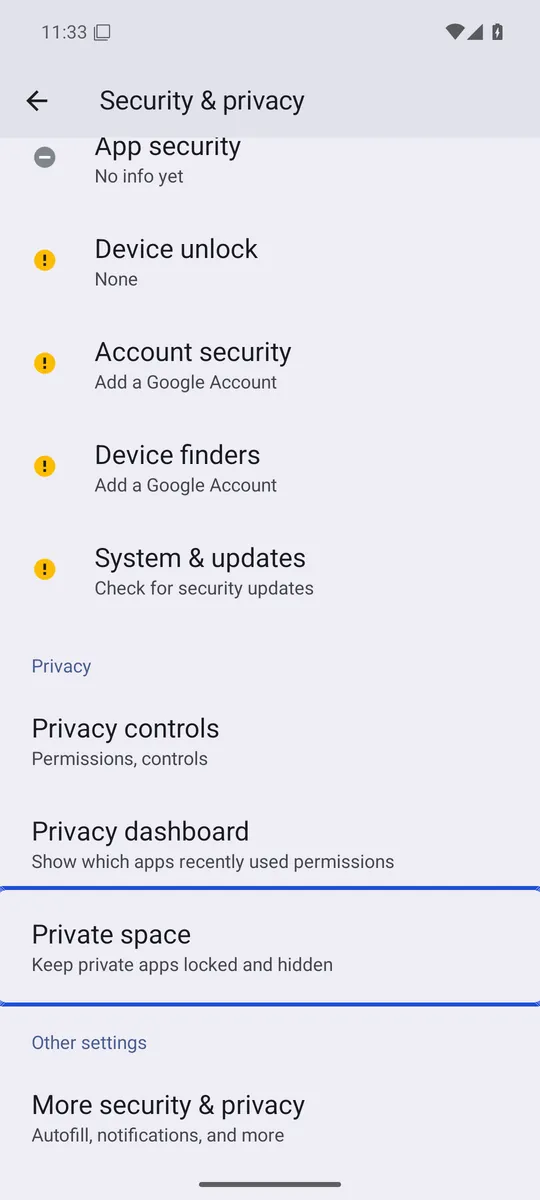
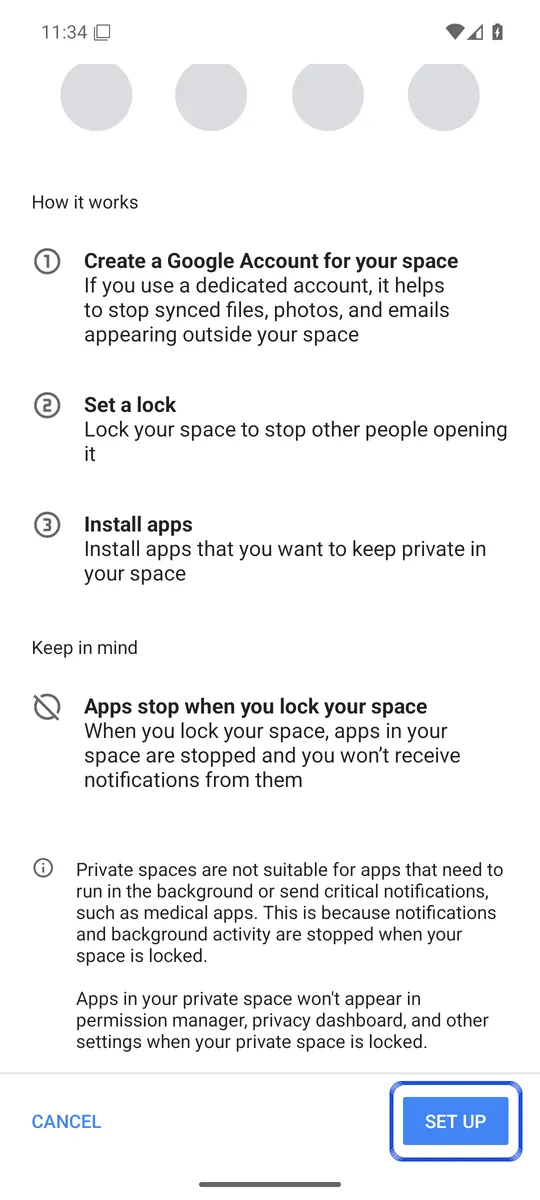
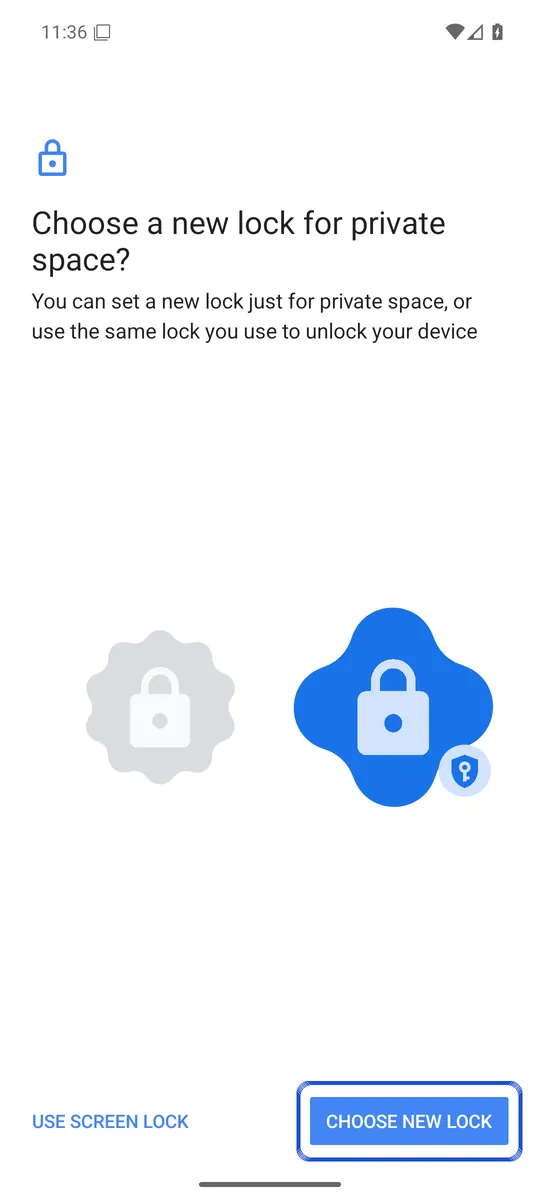
Screenshots: Android 16 emulator (Google APIs), captured 6 October 2026. Your phone maker's menus may look different.
When Private space is locked, Google says its apps are completely stopped and hidden from your app list, recent apps and notifications. The app inside is a fresh install: Android installs a separate copy and copies no app data over (Android Open Source Project). The original in your main space stays unlocked, so uninstall it if you want the app only in Private space. Google also says on-device data in Private space isn’t backed up. Our Private space guide covers the rest of its limits.
How to lock apps on Samsung Galaxy phones
Samsung Galaxy phones lock apps through Secure Folder, a private space with its own lock. These are Samsung’s steps (Samsung Canada):
- Open Settings > Security and privacy > More security settings > Secure Folder.
- Tap Continue, sign in to your Samsung account if asked, and choose a PIN, password or pattern.
- Turn on lock reset with your Samsung account when you are asked. Samsung says that without it, you can’t recover a forgotten Secure Folder passcode.
- Open Secure Folder from the Apps screen, tap the Add apps (plus) icon, pick an app and tap Add.
Samsung says the copy in Secure Folder works separately, with its own accounts and data. Android Authority notes that you have to delete the original to keep the app only in the folder (Android Authority). Samsung also says Secure Folder no longer supports new backups. For photos, see how to hide photos on Samsung.
How to lock apps on Xiaomi phones
Xiaomi has a true app lock, so the app stays where it is and asks for a password when opened (Xiaomi support):
- Open Settings > Apps > App lock.
- Tap Turn on and draw a pattern.
- Choose whether to add your Xiaomi Account.
- Select the apps to protect and tap Use App lock.
Xiaomi recommends adding your account so you can reset the password if you forget it, and lets you add fingerprint or face unlock (Xiaomi support). Menu names can differ between MIUI and HyperOS versions. More on the Gallery side in how to hide photos on Xiaomi.
How to lock apps on Motorola phones
Motorola phones use Secure folder, set up in the Moto Secure app or under Settings > Security & privacy > More security & privacy (Motorola Help):
- Tap Secure folder and choose a pattern, PIN or password. You can add fingerprint too.
- Open Secure folder, tap the plus icon, then Add apps, and pick an app.
- Sign in to the app again; Motorola says login details aren’t copied over.
- Uninstall the app from the rest of the phone if you want it only in the folder.
Be careful with the lock: Motorola says that if you forget it, you must delete the folder and set it up again, which deletes all its apps and files.
Pin one app before you hand over your phone
App pinning is not an app lock, but it solves a common problem: lending your phone without letting someone wander into other apps. Google’s help page explains it (Android Help):
- Open Settings > Security (or Security & location) > Advanced > App pinning and turn it on. If you can’t find it, Google says to check with your phone maker.
- Open the app, swipe up and hold to open Overview, tap the app’s icon at the top and tap Pin.
- To unpin, swipe up and hold (or hold Back and Overview with 3-button navigation). Google says you then need your PIN, pattern or password.
If you think someone already looked through your phone, our guide on how to check if someone used your phone lists the traces Android keeps.
Is Google adding App lock to Android?
Yes, but it is not out yet. Google added App lock to the Android 17 QPR2 beta for Pixel phones in August 2026, and 9to5Google reports that QPR2 is expected in December (9to5Google). In the beta you long-press an app and tap App lock, and the app then asks for your fingerprint or PIN. Locked apps hide their notification content, and their widgets and shortcuts are removed.
Samsung is reported to be testing a similar App lock for One UI 9.5 on the Galaxy S26 series, using your phone’s PIN or password (Android Headlines). Samsung hasn’t announced it, so treat it as unconfirmed.
What an app lock on Android does not protect
Whichever way you choose to lock apps on Android, the lock guards the front door of one app. It does not encrypt that app’s files or hide them from other apps.
- Other apps can still see your photos. In Google’s test build, locking an app like Files by Google shows a warning that other apps still have access to your photos, and lists them (Android Authority). Locking your gallery doesn’t lock Google Photos or a file manager.
- Services you allowed keep access. 9to5Google notes that AI agents and services you have given access to an app can still reach its data while it is locked.
- Some app lockers are weak. In 2015 a researcher reported that the popular AppLock app hid files without encrypting them and had a flawed PIN reset (Threatpost). In 2021 Tencent’s Xuanwu Lab found that most of the phone makers’ own app locks, file safes and private spaces it studied did not protect data as advertised; most issues were fixed after they were reported (Xuanwu Lab).
Single apps also have their own locks. WhatsApp, for example, added a fingerprint lock to its Android app in 2019 (WhatsApp blog).
If the real goal is private photos, lock the photos rather than the app. Our guide on how to hide photos on Android compares the options by how much they protect, and calculator vault apps explains why a disguised app is not the same as encryption. Lockspeare is one option that encrypts each photo, opens with its own PIN or pattern and has a recovery phrase if you forget it.
Common questions
Is there a way to lock individual apps on Android?
On Xiaomi phones, yes, with App lock in Settings > Apps. On Pixel phones, Google is testing an App lock in the Android 17 QPR2 beta, and Samsung is reported to be testing one for One UI 9.5. On other phones you put a copy of the app in a locked space such as Private space or Secure Folder.
Can I put a lock on apps in Samsung?
Yes, through Secure Folder. You add an app to it, and that copy opens only after you unlock Secure Folder with its own PIN, password, pattern or fingerprint. The copy outside stays unlocked, so remove it if you want the app only inside.
How do I lock apps on Android without an app?
Use what your phone already has. Private space on Android 15 and later, Secure Folder on Samsung, Secure folder on Motorola and App lock on Xiaomi all work without installing anything. To hand your phone to someone for one app, use app pinning.
Is app lock free?
The built-in options in this guide come with the phone and cost nothing extra. Third-party app lockers vary, and a researcher found serious flaws in at least one popular locker, so check how an app protects your data before trusting it.