Is a calculator vault app safe? How calculator vaults work and what to check
A calculator vault is a photo vault app that looks and works like a calculator: you type your secret PIN and it opens a hidden gallery instead of showing a result. How safe a calculator vault is depends on whether the app encrypts your photos. Research on popular vault apps found that most did not.
Below is how these apps work, what security researchers found when they tested them, and how to tell a good one from a weak one.
What is a calculator vault app?
A calculator vault is a disguise plus a vault. On the home screen and in the app drawer you see a calculator. It does sums like any other calculator, so someone who opens it sees nothing unusual. When you enter your PIN, or tap a hidden control, it switches to a private gallery that holds the photos, videos and files you moved into it.
Keepsafe’s calculator app is a typical example. Its help page says you only see a working calculator until you notice a small Keepsafe logo that pulls out a secret PIN pad. It also says the app goes back to the calculator as soon as you lock your phone screen (Keepsafe Support). Its Google Play listing adds a fake PIN that opens a decoy vault and alerts that photograph someone trying to break in, both as Premium features (Google Play).
The disguise and the vault are two separate things. The calculator decides whether someone notices the app. The vault decides whether they can read your photos once they look closer.
How does a calculator vault work?
When you add a photo, the app moves it into its own storage. How it stores the file there is the part that matters, and researchers found it varies a lot (Casing the Vault):
- Encrypted: the file is scrambled with a key, and without that key it is unreadable, even if someone copies the phone’s storage.
- Hidden or renamed: the file stays readable but sits in a hidden folder, gets a different file extension, or has its first bytes changed, so the gallery skips it.
- Plain copy: the file is simply moved into the app’s own folder.
A 2017 study of 18 popular Android vault apps found that 8 only moved or renamed files without changing their content, and that 7 kept the vault password in plain text in a settings file (Zhang, Baggili and Breitinger, Digital Investigation). The same study found that at least 3 apps posed as a harmless tool such as a calculator.
How safe is a calculator vault?
In 2022, researchers at the University of Illinois tested 20 popular Android vault apps, each with ten million or more downloads (Casing the Vault, WPES 2022). Here is what they found:
| Finding | Apps (out of 20) |
|---|---|
| Used encryption for hidden files | 5 |
| Stored the PIN and recovery email in plain text | 7 |
| Had a decoy disguise, such as a calculator or clock | 10 |
| Decoy that really worked as a calculator or clock | 7 |
| Turned the disguise on automatically at install | 5 |
| Files recovered without rooting the phone | 15 |
The other 5 apps could be broken with root access. Their summary was blunt: most files in vault apps “can be easily recovered.”
The disguise was weak too. In the same study, someone with no technical skills could identify 17 of the 20 vault apps, for example from names and icons that did not match across the phone’s screens, or from their size. A real calculator took about 6 MB, while the smallest calculator vault took over 35 MB before any photos were added (Casing the Vault).
This is what that mismatch looks like on a real phone. The app below is set to show a calculator icon on the home screen, but Android’s Settings still list it under its real name, with its size.
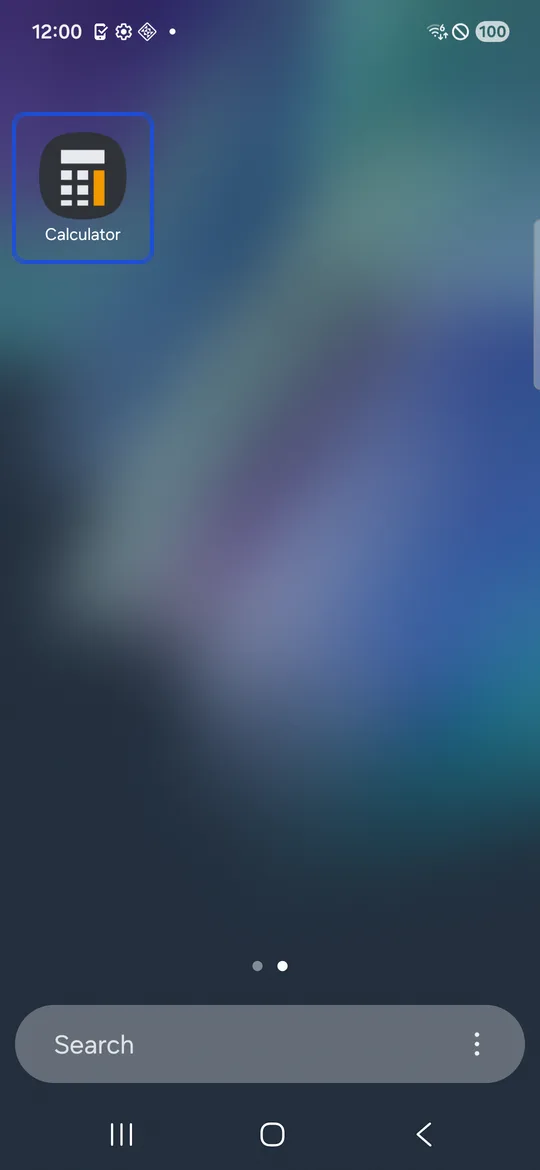
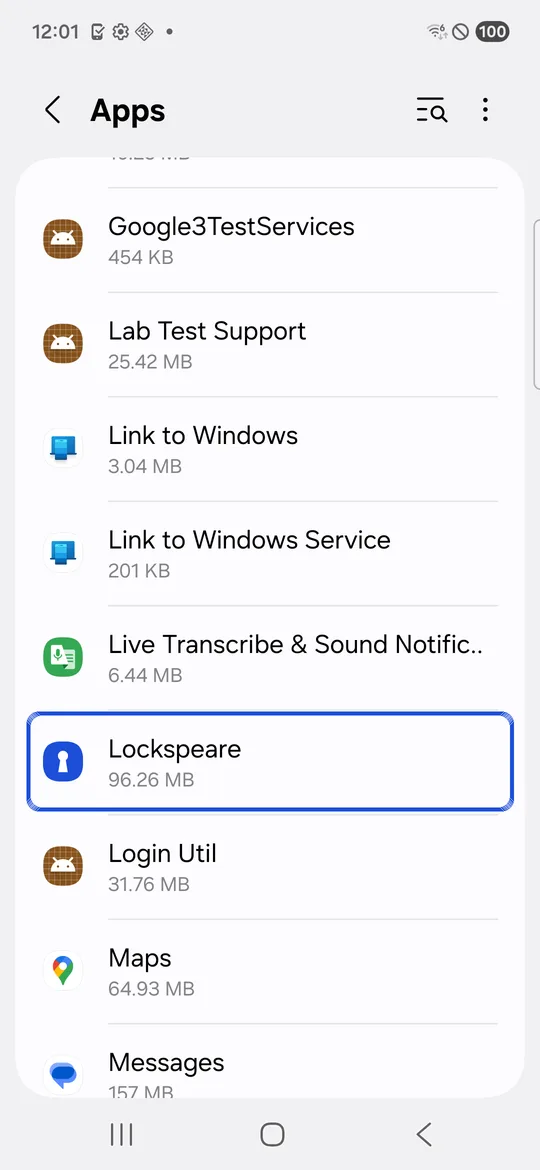
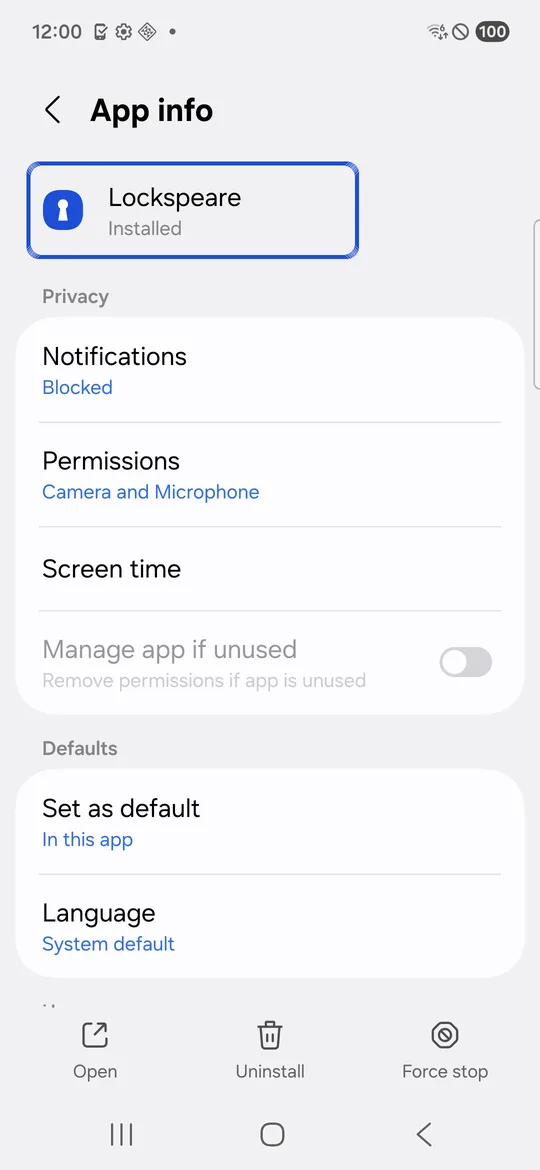
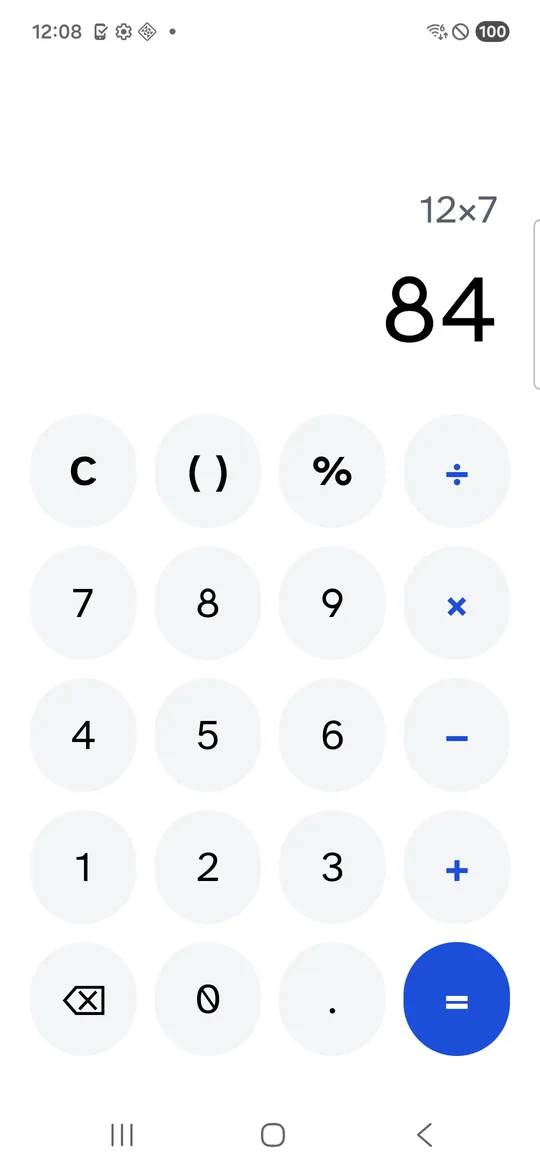
Screenshots: Samsung Galaxy S21 FE (SM-G990W2) on Android 16, a real phone in Firebase Test Lab, captured 7 and 8 October 2026. The disguised app is our own app, Lockspeare, with its Calculator icon turned on.
Android itself also limits how well an app can hide. Since Android 10, most apps that try to remove its icon from the launcher still get an icon that opens its details page in Settings (MITRE ATT&CK).
How to choose a calculator vault app that protects your photos
The calculator icon is the least important feature. Check these instead:
- Encryption of files on the phone. Look for a clear statement that the photos stored on your phone are encrypted. The “Data is encrypted in transit” label on Google Play is about data sent from your phone to the developer’s servers (Play Console Help), not about the photos stored in the vault.
- A way back in. Find out what happens if you forget the PIN: a recovery email, an account, or a recovery key. Our guide on what to do if you forgot your photo vault password explains each option and its trade-offs.
- A long PIN. The 2017 study found most vault apps allowed only 4 to 6 digits, which made guessing easier (Zhang et al.). Use the longest PIN the app allows.
- A backup you understand. If the vault exists only on your phone, losing the phone or uninstalling the app can mean losing the photos.
- Clean up the originals. Moving photos into a vault can leave copies in your gallery’s trash or in cloud backup. See where deleted photos stay on Android.
Lockspeare takes the encryption-first approach: it encrypts each file on the phone under your PIN or pattern, can open a separate decoy vault with a second PIN, and gives every vault a 12-word recovery phrase. With its Calculator icon it opens as a working calculator, and your PIN followed by = opens the vault. We still treat that disguise as a convenience, not as protection.
Calculator vault alternatives built into Android
Before you install a calculator vault, check what your phone already has. Each option is covered in more detail in our guide on how to hide photos on Android.
- Google Photos Locked Folder uses your phone’s screen lock. Items in it don’t appear in the Photos grid, albums or search, and other apps with photo access can’t see them (Google Photos Help). Items you don’t back up stay only on that phone. More in is Google Photos Locked Folder safe.
- Private space works on Android 15 and up. It is a separate space with its own lock, and when it is locked its apps are hidden from the launcher, recent apps, the photo picker and Settings (Android Help). See Private space on Android.
- Samsung Secure Folder is Samsung’s own vault on Galaxy phones. Our guide on how to hide photos on Samsung covers it step by step.
- Xiaomi’s private album in the Gallery app on Xiaomi, Redmi and POCO phones opens with a privacy password. Our guide on how to hide photos on Xiaomi explains what it does and does not protect.
How to recover photos from a calculator vault
Recover photos through the app itself, not by uninstalling it. Open the vault, select the photos, and use its restore or unhide option to move them back to your gallery. The name of that option differs by app.
If you can’t get past the PIN, use the app’s reset option and the recovery email or account you set up. Don’t clear the app’s data or uninstall it to remove the lock: with Google Photos, for example, uninstalling the app or clearing its data deletes Locked Folder items that were not backed up (Google Photos Help), and other vault apps can work the same way.
Common questions
What is a calculator vault app?
It is a photo vault that looks like a calculator. The calculator works, but typing your PIN, or tapping a hidden button, opens a private gallery where you keep photos, videos or files you moved out of your normal gallery.
How safe is a calculator vault?
It depends on the app, not the calculator. In a 2022 study of 20 popular Android vault apps, only 5 encrypted the files they hid, and files from 15 could be pulled off the phone without rooting it. A vault that encrypts your files is far harder to read than one that only hides or renames them.
Which calculator vault is best?
Pick one that says clearly that it encrypts the files stored on your phone, gives you a way back in if you forget the PIN, and offers a backup you control. Treat the calculator icon as a bonus, because researchers could spot most disguised vaults without special tools.
What is the safest app for hiding photos on Android?
Start with what your phone already has. Google Photos Locked Folder keeps photos out of your grid, albums and other apps, and Private space on Android 15 and up hides whole apps behind a separate lock. Use a separate vault app when you want encryption under your own PIN or a decoy PIN.