How to hide photos on Xiaomi: hidden albums and the private album
To hide photos on Xiaomi, Redmi and POCO phones, open the Gallery app, select the photos and add them to the Private album, which opens only with your privacy protection password. You can also hide a whole album from the Gallery view, but Xiaomi mentions no password for that.
Below are the steps for each from Xiaomi’s own help pages, with what each option does and does not protect. Menu names can differ a little between models and between MIUI and HyperOS versions.
1. How to hide photos on Xiaomi by hiding an album
Hiding an album keeps it out of the main Gallery view. It is tidying, not a lock. Xiaomi’s steps (Xiaomi support):
- Open the Gallery app.
- Press and hold the album.
- Tap Hide, then OK.
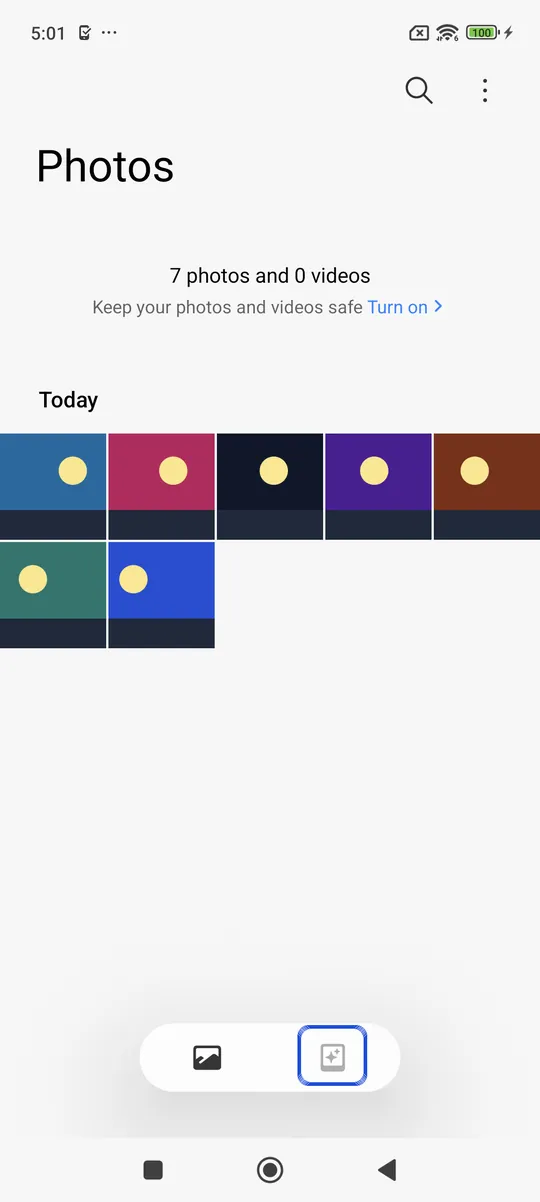
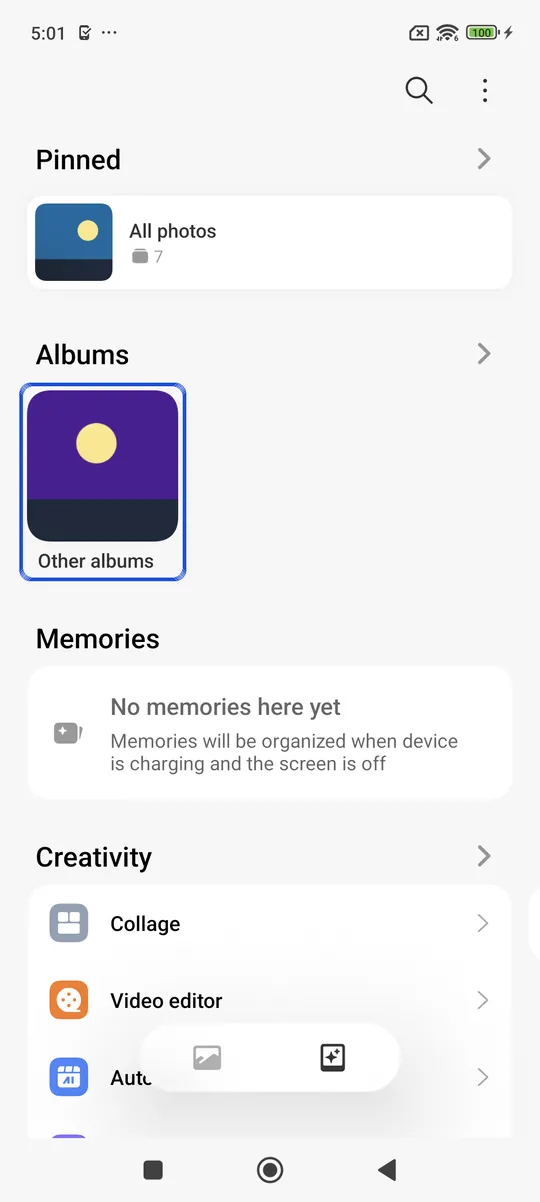
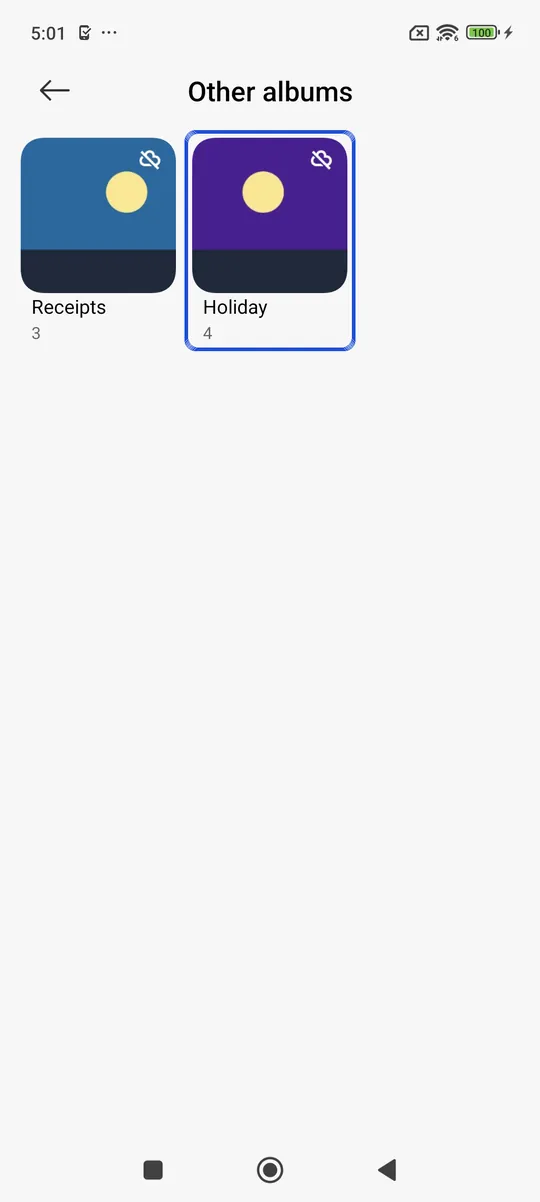
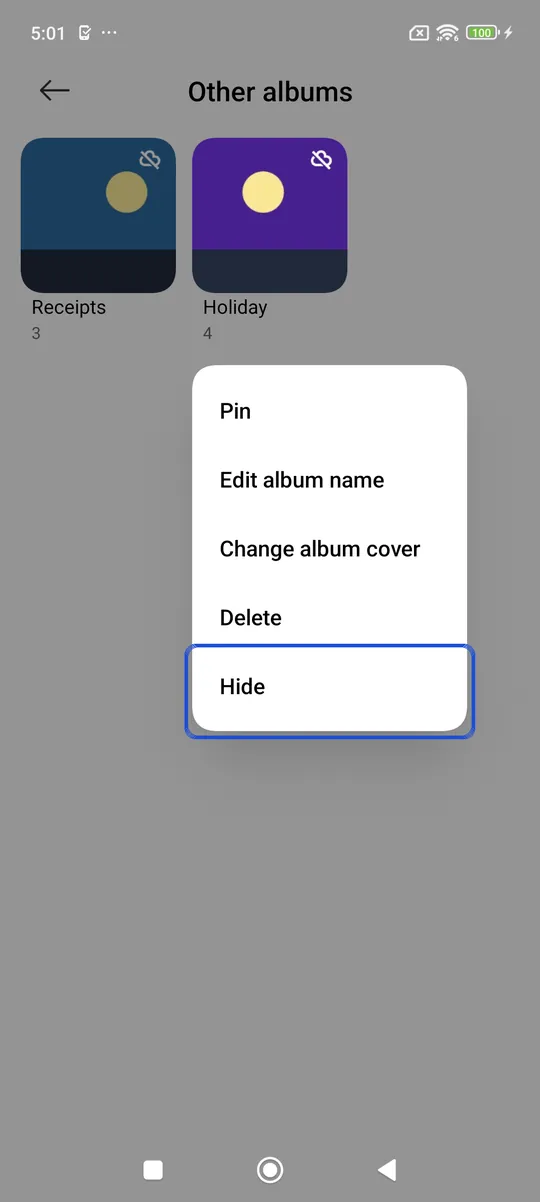
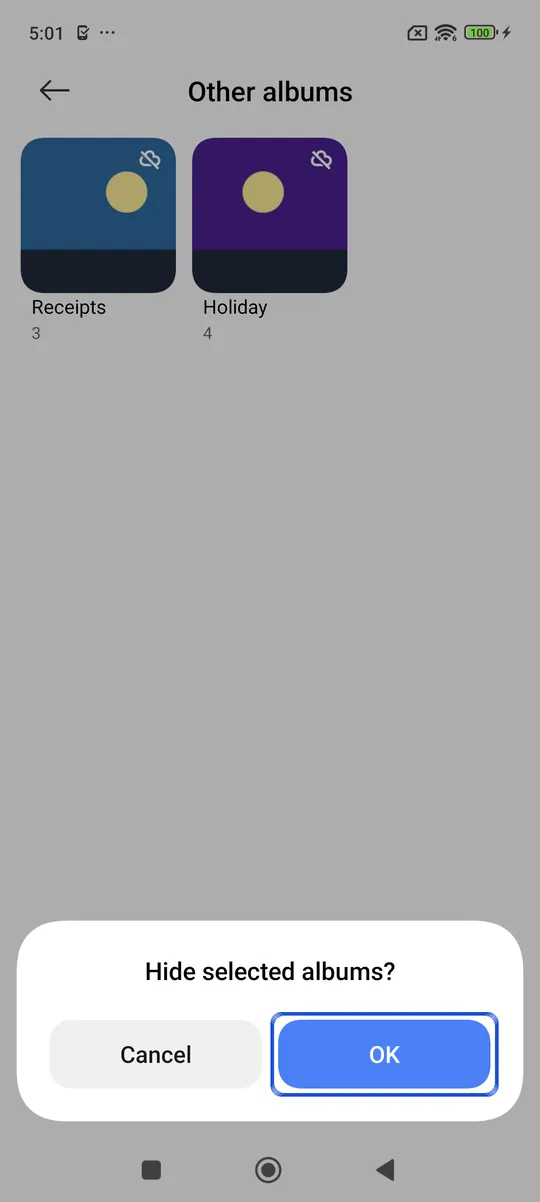
Screenshots: Xiaomi 14 (23127PN0CG) on Android 15 with HyperOS, a real phone in Firebase Test Lab, captured 14 October 2026, with sample albums. On this phone, albums other than the camera are grouped under Other albums.
To see or unhide it: in Gallery, tap the three-dot icon at the top right, then Settings, then View hidden albums. Tap Unhide and OK.
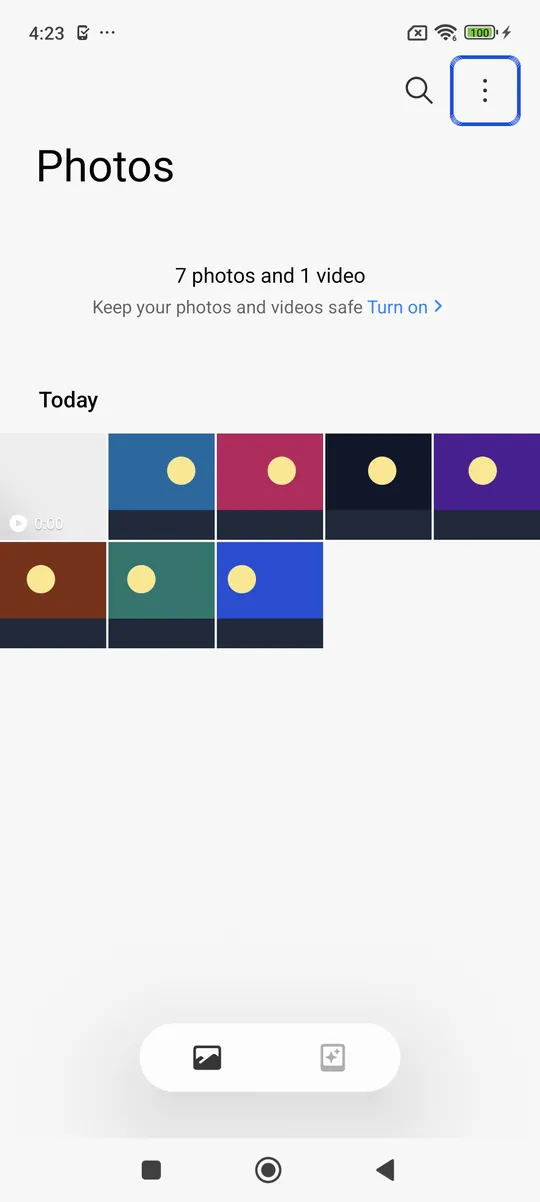
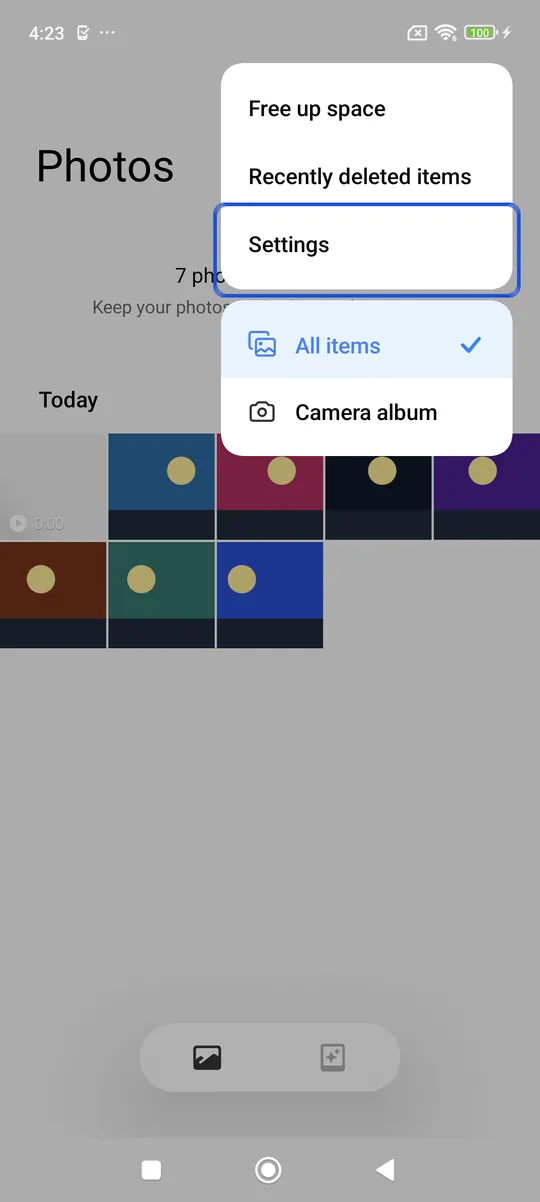
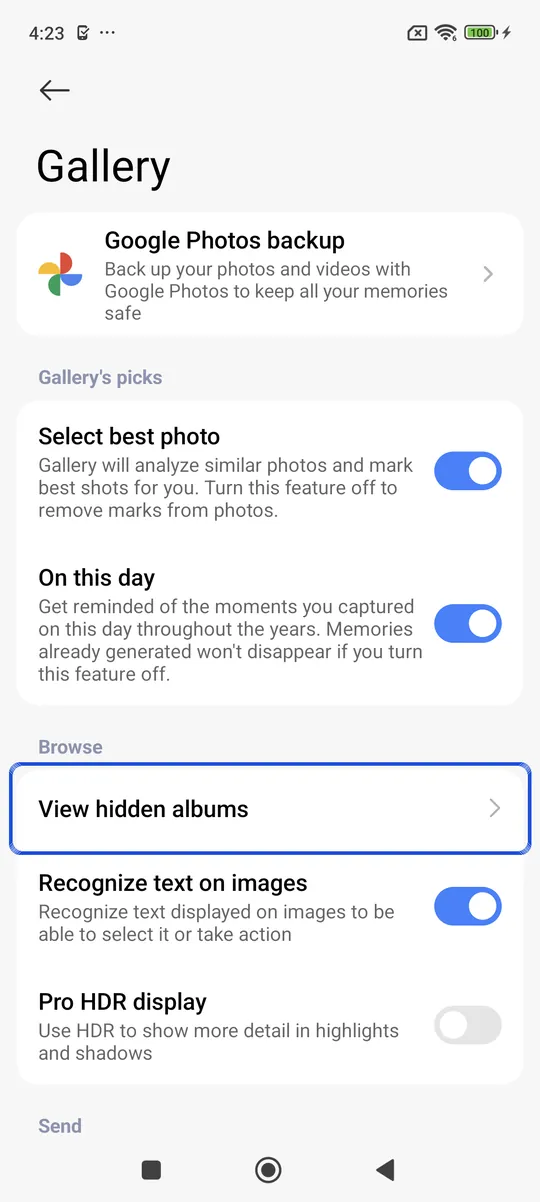
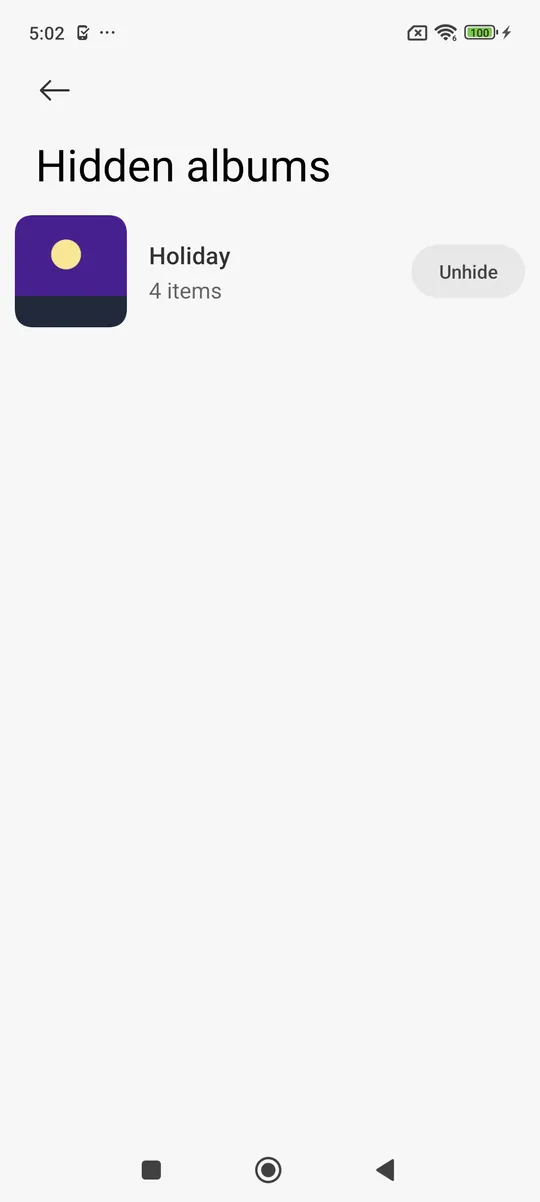
Screenshots: Xiaomi 14 (23127PN0CG) on Android 15 with HyperOS, a real phone in Firebase Test Lab, captured 14 October 2026, with sample images. The Hidden albums screen opened without asking for a password.
What it does not do: Xiaomi’s page does not mention any password for hidden albums, so anyone holding your unlocked phone can open the setting and see them. It also does not say other apps are blocked from the photos. Treat a hidden album as out of sight in the Gallery only.
2. How to hide photos on Xiaomi in the private album
The private album is the closest thing Xiaomi has to a secret folder. Xiaomi’s steps for its recent phones (Xiaomi support):
- Open Gallery and select the photo or photos.
- Tap the three-dot icon in the lower right corner.
- Tap Add to album, choose Private album, then OK.
If you have not set a privacy protection password yet, you are asked to create one the first time you open the private album. You can also set it in advance: open Settings, tap Fingerprints, face data, and screen lock, then Privacy protection password.
An older Xiaomi help article says the first use asks you to sign in with a Xiaomi (Mi) account, because the album was tied to Xiaomi Cloud (Xiaomi support). Xiaomi has since ended Xiaomi Cloud sync for Gallery items, and its notice says cloud features, including private albums, are no longer supported there (Xiaomi Cloud). So on current phones, do not count on Xiaomi Cloud to back up your private photos.
How to see private albums in the Gallery
The private album does not appear in your album list. To open it (Xiaomi support):
- Open Gallery and go to Albums.
- Swipe down on the album screen and let go.
- Enter your privacy protection password.
If you forget the password: Xiaomi says you can reset it from Settings > Fingerprints, face data, and screen lock > Privacy protection password > Forgot pattern, then enter your Xiaomi Account password and set a new pattern (Xiaomi support). That is convenient, but it also means someone who knows your Xiaomi Account password can set a new one. Our guide on what to do if you forget a photo vault password explains why a reset like this is a trade-off.
How safe is the Xiaomi private album?
Xiaomi says the private album uses encryption so that only you can see what is in it (Xiaomi support). Independent developers describe a weaker picture. An open-source tool on GitHub says private album files sit in the folder MIUI/Gallery/cloud/secretAlbum as .lsa (photos) and .lsav (videos) files. It says the encryption key is built into the Gallery app, and that the files can be decrypted without the privacy password (GitHub). A second tool decrypts the same files in a browser after you copy that folder off the phone over USB, and lists MIUI 12 to 14 and HyperOS (LSA Decryptor).
We have not tested these tools, and Xiaomi does not publish how the encryption works. But if they are right, the password guards the Gallery screen, not the files themselves. In practice:
- It protects against: someone scrolling through your Gallery, and casual snooping on an unlocked phone.
- It may not protect against: someone who can copy files from the phone to a computer, and possibly apps allowed to read all your files.
That gap between “hidden” and “encrypted under your own lock” is the main thing to understand. Our guide on how to hide photos on Android compares methods by how much they protect.
Other ways to hide photos on Xiaomi phones
App lock. You can lock the Gallery app itself: Settings > Apps > App lock > Turn on, set a password, then pick the apps (Xiaomi support). Xiaomi says your Xiaomi Account is the only way to restore the App lock password if you forget it; without one, the fix is a factory reset, which erases the phone. Xiaomi describes it as a password for opening the apps you pick. It doesn’t say the photos are hidden from other apps. For other phones, see how to lock apps on Android.
Second space. On phones that have it, Second space is a separate space with its own apps, data and unlock password. Xiaomi’s path is Settings > Additional settings > Second space > Enable Second space (Xiaomi support). You choose a space by the password you enter on the lock screen. Xiaomi warns that deleting Second space erases its data, so back it up first.
Google Photos Locked Folder. If you use Google Photos, its Locked Folder isn’t limited to Pixels: Google lists Android 6 or later and a screen lock as the requirements. Google says items there don’t show in the Photos grid, search or albums, and other apps can’t see them. It opens with your screen lock, and items not backed up are lost if you uninstall Photos, clear its data or reset the phone (Google Photos Help). More in is Google Photos Locked Folder safe?
Safe folder in Files by Google. It has its own PIN or pattern and uses encrypted Android storage (Android 8.0 and up). Google says other apps can’t open its files. But you can’t back them up to Google Drive, and a forgotten PIN means the files are gone (Files by Google Help).
Which way to hide photos on Xiaomi to use
| Feature | Hidden album | Private album | Locked Folder | Safe folder |
|---|---|---|---|---|
| Lock | None | Privacy password | Your screen lock | Own PIN or pattern |
| If you forget it | No password | Reset with Xiaomi Account | Same as screen lock | Files lost |
| Backup | Not stated | Xiaomi Cloud sync ended | Optional, Google Photos | No Google Drive backup |
| Files encrypted under your lock | No | Disputed (see above) | Not stated | Encrypted storage |
How you hide photos on Xiaomi should depend on who you are hiding them from:
- Keeping your Gallery tidy: hide the album.
- Stopping someone who borrows your phone: the private album, ideally with App lock on Gallery too.
- Protecting the files themselves: use a vault that encrypts each photo under a lock only you know, and keep a backup you control. Our comparison of photo vault apps for Android shows what each one encrypts. Lockspeare is one option: it encrypts each photo on the phone under your PIN or pattern and gives you a 12-word recovery phrase instead of an account reset.
Whichever you pick, delete the originals you no longer need and check that copies haven’t stayed in the Gallery’s recently deleted album; see where deleted photos go on Android.
Common questions
Does Xiaomi have a secret folder?
Yes. The Gallery app on Xiaomi, Redmi and POCO phones has a private album, which Xiaomi's help also calls a secret folder. It opens when you swipe down on the Albums screen and enter your privacy protection password.
How do I see private albums in the Gallery?
Open Gallery, tap Albums, swipe down on the album list and let go, then enter your privacy protection password. Hidden albums are different. You find them under the three-dot menu, Settings, View hidden albums; Xiaomi's page mentions no password for them.
How do I keep photos private on a Redmi?
Redmi phones use the same Xiaomi Gallery app. Move the photos to the private album and set a privacy protection password. For stronger protection, keep them in an app that encrypts them under a lock only you know.
What if I forget my Xiaomi privacy protection password?
Xiaomi's help says you can reset it in Settings, under Fingerprints, face data, and screen lock, then Privacy protection password, then Forgot pattern. You will need your Xiaomi Account password to set a new one.