How to stop Google Photos from backing up (all photos or one folder)
Here is how to stop Google Photos from backing up on Android: open Google Photos, tap your profile picture, then Photos settings, then Backup, and turn Backup off. If you only want to keep one folder out of the cloud, such as Screenshots or WhatsApp, leave Backup on and switch that folder off under Back up device folders instead.
Stopping backup only affects what gets uploaded from now on. Photos already in Google Photos stay there until you delete them, and deleting them has a trap covered below. The steps are for the Google Photos app on Android; the menu names come from Google’s help pages and can shift slightly between app versions.
How to stop Google Photos from backing up on Android
Google’s steps to turn backup off (Google Photos Help):
- Open the Google Photos app and make sure you are signed in.
- Tap your profile picture or initial at the top right.
- Tap Photos settings, then Backup.
- Turn Backup off.
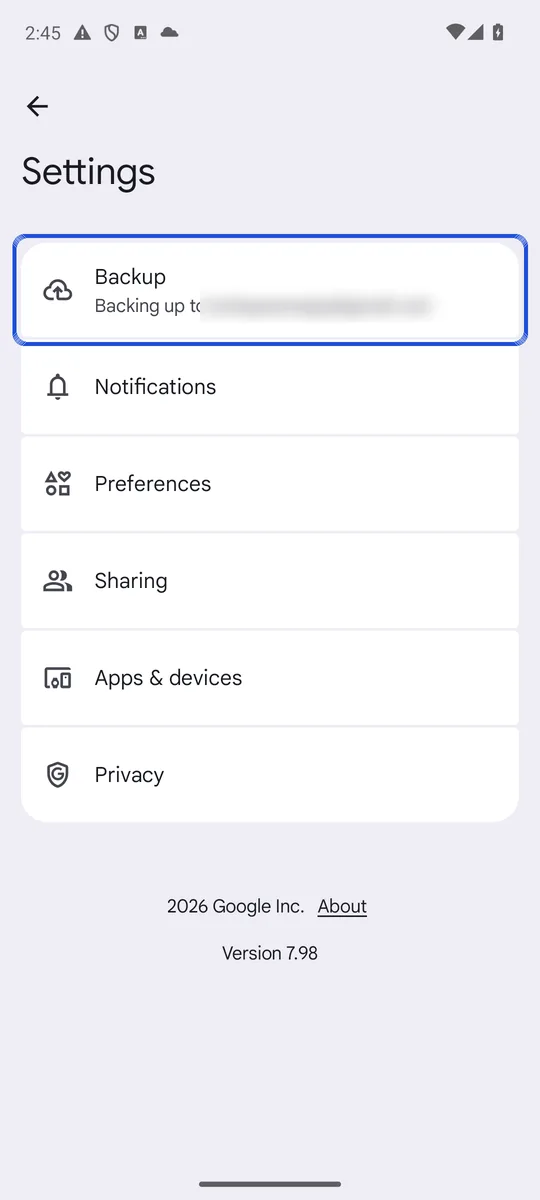
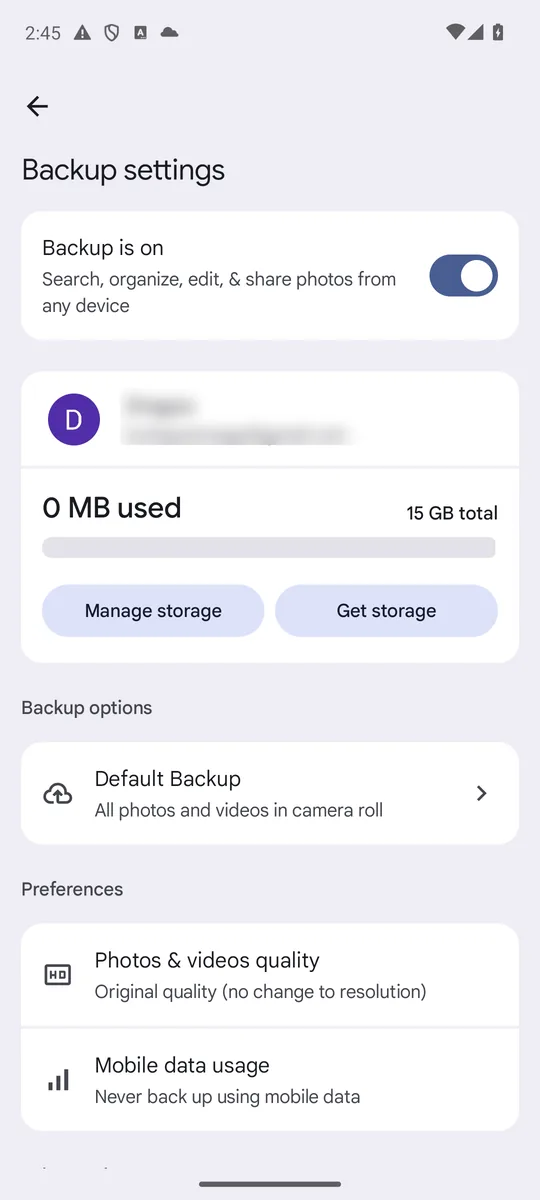
Screenshots: Google Photos 7.98 on an Android 14 emulator signed in to a test account whose library holds only generated sample images, captured 26 October 2026. The account name and email are blurred. Google changes this layout between app versions, so your menu may be grouped differently.
The backup status then reads “Backup is off”. Your photos still show in the app, because Google Photos also shows what is on the phone. Google points out that seeing a photo in the app does not mean it is backed up. With backup off, the thumbnails show which photos are backed up (a cloud with a check mark) and which are not.
Backup works per phone and per account. Google Photos backs up to one Google Account at a time, and you can change which one under Photos settings > Backup (Google Photos Help). If you have another phone or tablet signed in to the same account, turn backup off there too.
How to stop Google Photos from backing up one folder
Turning backup off is all or nothing. To keep backing up your camera but stop other folders, use device folders (Google Photos Help):
- In Google Photos, tap your profile picture, then Photos settings, then Backup.
- Under “Settings”, tap Back up device folders.
- Turn off each folder you don’t want uploaded, and leave on the ones you do.
- Check Back up all device folders. When it is on, photos in any new folder that appears on your phone are backed up automatically. Turn it off if you want to approve each new folder yourself.
This is how to stop Google Photos from backing up screenshots: switch off the Screenshots folder, where most phones save them (How-To Geek via Yahoo Tech). The same works for the folders that messaging apps such as WhatsApp create. In 2020, Google stopped backing up messaging and social app folders by default, at least for a time, and anyone can turn them back on (Engadget), so check the list on your phone rather than assume. To keep WhatsApp pictures out of your gallery in the first place, see how to stop WhatsApp from saving photos.
What happens to photos already uploaded when you stop Google Photos from backing up
They stay in your Google Photos library, and they keep using the storage your Google Account shares between Photos, Drive and Gmail (Google One Help). Stopping backup does not remove them: Google’s own steps for removing backed-up photos are to turn backup off first, then delete the photos (Google Photos Help).
So if your goal is to get photos out of Google’s cloud, stopping backup is only the first step. The next section shows how to remove what is already there without losing your copies.
Can you delete photos from Google Photos but keep them on your phone?
Yes, but the order matters. With backup on, deleting a backed-up photo in Google Photos also deletes it from your phone and from every other device that has backup turned on (Google Photos Help). Turn backup off on the phone first, as above.
To remove everything this phone uploaded in one go, Google has Undo backup (Google Photos Help):
- In Google Photos, tap your profile picture, then Photos settings, then Backup.
- Scroll down and tap Undo backup.
- Tick the box that says you understand the photos and videos from this device will be deleted from Google Photos.
- Tap Delete Google Photos backup.
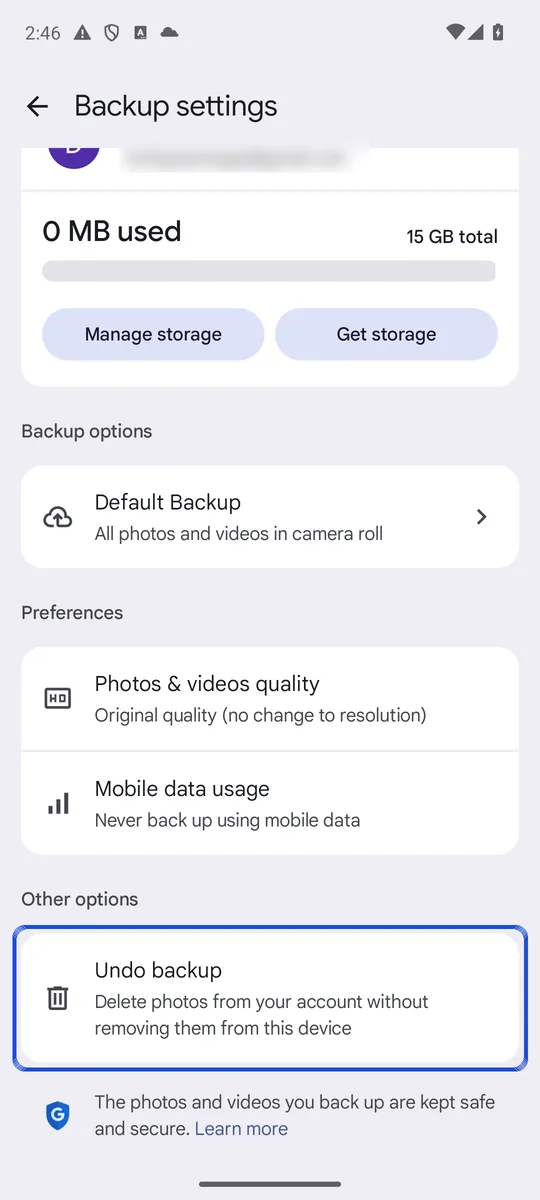
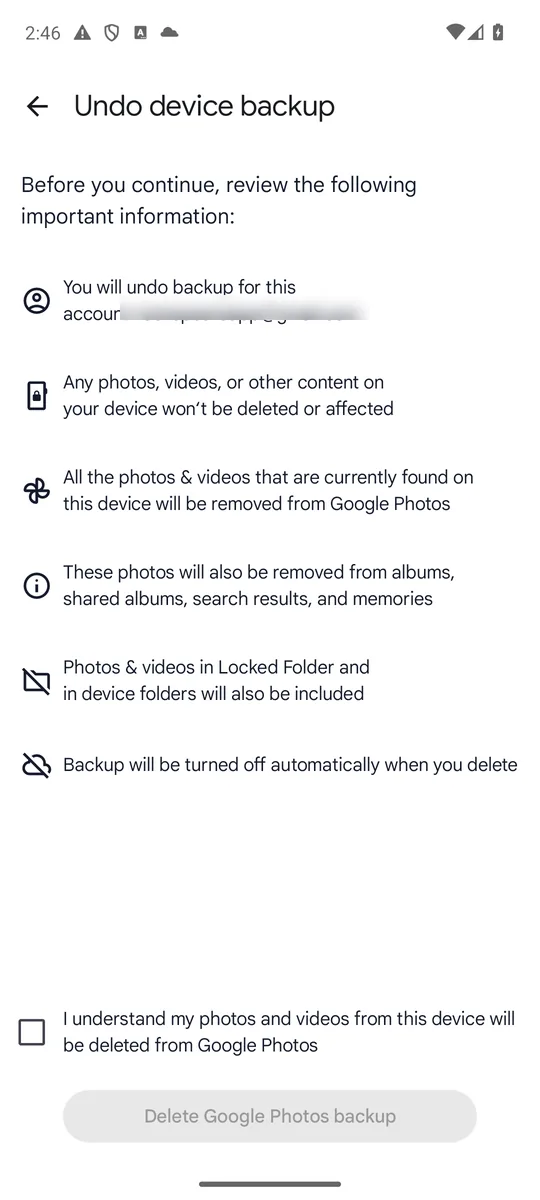
Screenshots: Google Photos 7.98 on an Android 14 emulator, captured 26 October 2026, on a test account with generated sample images. The account email is blurred, and the final button was never tapped.
The photos stay on your phone and backup turns off on that device. Google warns that if you are signed in on other devices with backup on, the photos may be backed up again. Photos you delete one by one go to the Google Photos trash for 30 days before they are gone for good; our guide to where deleted photos stay on Android explains how to empty it.
The opposite case, deleting photos from the phone and keeping the cloud copy, is what Free up space on this device does: it removes the phone’s copies of photos that are already backed up, and they stay in your library (Google Photos Help). Our guide on how to delete photos from your phone but not Google Photos has the steps and the checks to do first.
Does stopping backup affect Locked Folder?
Locked Folder has its own switch. Under Photos settings > Backup, Back up Locked Folder decides whether its items go to the cloud, and it only works while regular backup is on (Google Photos Help). Without backup, Locked Folder items live only on that phone: Google says they are deleted if you uninstall Google Photos, clear its data or reset the phone. Our guide to whether Google Photos Locked Folder is safe covers what else it does and does not protect.
Stop Google Photos from backing up over mobile data
If your concern is data use, not the cloud, you don’t need to turn backup off. Under Photos settings > Backup > Mobile data usage, you can set a daily limit, turn off Back up videos over data or turn off backup while roaming (Google Photos Help).
And Android’s own device backup is a separate thing. Google’s Pixel help says photos and videos sync to their own service and are not part of device backups (Pixel Phone Help), so the Google Photos switch is the one that matters.
When stopping backup is not enough
Keeping photos off the cloud does not hide them on the phone. Anyone who opens your gallery still sees them. If some photos are private, see how to make Google Photos private for sharing and location settings, and our guide on how to hide photos on Android, which compares hidden albums, Locked Folder, Private space and encrypted vaults. Lockspeare is one of those vaults: it encrypts each photo on your phone behind its own PIN or pattern, and nothing leaves the phone unencrypted.
Common questions
Why do my photos automatically go to Google Photos?
Because Backup is turned on in the Google Photos app. With Backup on, Google Photos uploads your camera photos and every device folder you have switched on under Back up device folders. Turn Backup off, or switch off single folders, to stop it.
How do I force stop Google Photos backup?
In the Google Photos app, tap your profile picture, then Photos settings, then Backup, and turn Backup off. Nothing new is uploaded from that phone after that. Photos that were already uploaded stay in your Google Photos library.
Can I delete a photo from Google Photos but keep it on my phone?
Yes, but turn off Backup on that phone first. With Backup on, deleting a backed-up photo in Google Photos also deletes it from your phone. The Undo backup option removes everything this phone uploaded from Google Photos and keeps the files on the phone.
Will I lose my photos if I stop paying for Google storage?
Not right away. If you go over your storage limit, new photos stop backing up. Google says content can be removed only after you have been over the limit for 2 years, and it contacts you at least 3 months before.