How to stop WhatsApp from saving photos on Android
Here is how to stop WhatsApp from saving photos to your Android gallery: open WhatsApp, tap More options (the three dots), then Settings, then Chats, and turn off Media visibility. To do it for one person or group only, open that chat, tap its name and set Media visibility to No.
WhatsApp turns Media visibility on by default, so every photo and video it downloads appears in your phone’s gallery (WhatsApp Help Center). That is how a family group’s memes end up next to your own pictures, and how a private photo someone sent you ends up one swipe away for anyone scrolling your gallery. The settings below fix the gallery side. They don’t make the photos private, which is covered at the end.
How to stop WhatsApp from saving photos for all chats
WhatsApp’s own steps for Android are (WhatsApp Help Center):
- Open WhatsApp and tap More options (the three dots).
- Tap Settings, then Chats.
- Turn off Media visibility.
This only affects new media: photos already in your gallery stay there (WhatsApp Help Center). It also doesn’t change any auto-download choices you made for particular chats or groups, and you can turn it back on whenever you like (WhatsApp Help Center).
How to stop WhatsApp from saving photos from one chat or group
If you only want to keep one busy group or one person out of the gallery, leave the global switch on and change that chat (WhatsApp Help Center):
- Open the chat or group.
- Tap More options, then View contact or Group info. Tapping the contact’s name or the group subject at the top opens the same screen.
- Tap Media visibility, choose No, then tap OK.
WhatsApp asks whether newly downloaded media from this chat should show in your phone’s gallery, and No keeps it out (gHacks). The dialog has three choices: Default (Yes), which follows your setting for all chats, Yes and No.
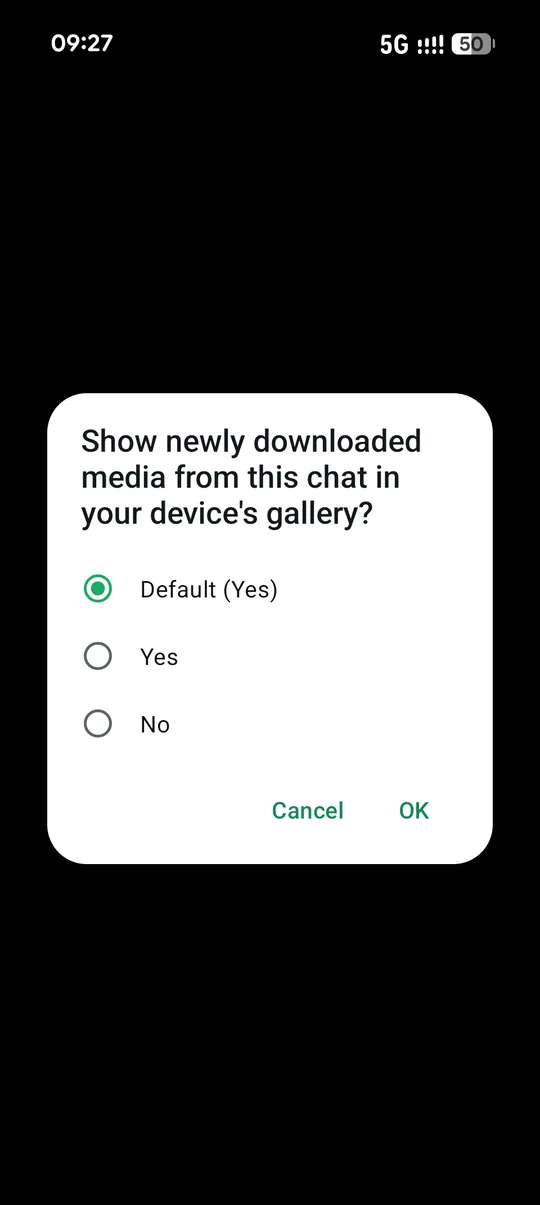
Screenshot: WhatsApp on a real Android phone, captured 6 November 2026.
How to hide WhatsApp photos already in your gallery
Because Media visibility only changes new downloads, the photos WhatsApp already saved stay in the gallery. WhatsApp describes a way to hide all of them on Android: with a file manager app, create an empty file named .nomedia (with the dot at the start) in WhatsApp’s Images/WhatsApp Images folder. That hides all WhatsApp photos from your gallery, and deleting the file shows them again (WhatsApp Help Center).
On Android 11 and later, WhatsApp keeps its media under Android/media/com.whatsapp/WhatsApp/Media/ in internal storage; on older versions the folder is WhatsApp at the top of internal storage (AnExplorer). How you reach that folder depends on your file manager app.
Stop WhatsApp from downloading photos automatically
Media visibility controls where photos show up, not whether WhatsApp downloads them. To stop the downloads themselves on Android (Guiding Tech):
- Tap More options, then Settings, then Storage and data.
- Under Media auto-download, tap When using mobile data and clear every media type, then confirm.
- Do the same for When connected on Wi-Fi and When roaming.
Photos then wait in the chat until you tap to download them. With Media visibility off as well, even the photos you do download stay out of the gallery.
Why WhatsApp media is not showing in your gallery
If you want the opposite, check the same switches. Photos stop showing in the gallery when Media visibility is off for all chats or for that chat (WhatsApp Help Center), or when a .nomedia file sits in the WhatsApp Images folder (WhatsApp Help Center). Turn the setting back on or delete the file. Photos that were never downloaded because auto-download is off also won’t be there until you tap them in the chat.
What stopping WhatsApp from saving photos does not do
Turning off Media visibility is how to stop WhatsApp from saving photos to the gallery, but it only hides them from gallery apps. It doesn’t delete or protect them:
- The files are still on your phone. WhatsApp keeps the media in its folders, and you can still open it in WhatsApp and in a file manager (AnExplorer). gHacks makes the same point: the media stays on the device and anyone who knows where to look can display it (gHacks).
- Cloud backups follow device folders. Since 2020, Google Photos hasn’t backed up WhatsApp and other messaging app folders by default, but anyone can switch them back on (Engadget). Check the WhatsApp folder in how to stop Google Photos from backing up one folder.
- Deleted copies linger. If you delete WhatsApp photos from your gallery app, they usually sit in its trash first; see why deleted photos stay on Android.
- Someone with your unlocked phone can still open the chat. Locking WhatsApp itself is covered in how to lock apps on Android.
Send photos WhatsApp won’t save: view once
When you are the one sending a private photo, view once is the stronger setting. WhatsApp says view once media isn’t saved to the recipient’s Photos or Gallery, can’t be forwarded, saved, starred or shared, and is blocked from screenshots on the latest app version (WhatsApp Help Center). It isn’t airtight: the person can still photograph the screen with another camera, and an unopened view once photo expires from the chat after 14 days (WhatsApp Help Center).
Where to keep WhatsApp photos you want private
Knowing how to stop WhatsApp from saving photos keeps new ones out of the gallery. For a photo you received and want to keep, move it somewhere locked. Our guide on how to hide photos on Android compares the options, from Google Photos Locked Folder to Private space and encrypted vaults. Lockspeare, our vault app, accepts photos from Android’s share menu and stores them encrypted on the phone, outside the gallery. Whatever you choose, delete the WhatsApp copy afterwards, both in the chat and in the gallery trash.
Common questions
How do I disable downloading images on WhatsApp?
On Android, open WhatsApp, tap More options, then Settings, then Storage and data. Under Media auto-download, clear every media type for mobile data, Wi-Fi and roaming. Photos then wait in the chat until you tap to download them.
Why are WhatsApp media not showing up in my gallery?
Usually because Media visibility is off, for all chats or for that one chat, or because a .nomedia file sits in the WhatsApp Images folder. Turn Media visibility back on in Settings, then Chats, or delete the .nomedia file, and new photos show in the gallery again.
Does turning off Media visibility delete WhatsApp photos?
No. WhatsApp still downloads the photos and keeps them on your phone, where you can open them in the chat or in a file manager. They just stop appearing in gallery apps, and only for media downloaded after you change the setting.
Can I stop WhatsApp from saving photos from only one person?
Yes. Open that chat or group, tap the contact's name or the group subject, tap Media visibility, choose No and tap OK. Photos from your other chats still go to the gallery.