How to make Google Photos private: sharing, location and Locked Folder
Here is how to make Google Photos private: turn off link sharing on your shared albums, remove people you no longer want in them, stop partner sharing, and move sensitive photos into Locked Folder. Your library is already private by default, so making it private mostly means closing the shares you opened.
Below is how to make Google Photos private one place at a time, in the order that matters most. The steps are for the Google Photos app on Android. Menu names come from Google’s own help pages; they can move slightly between app versions.
Are Google Photos private by default?
Yes. Other people see your photos when you share them through a link, a conversation, a shared album or partner sharing, the sharing options Google describes (Google Photos Help). Google also says that “locations are private by default” and that new albums, links and conversations you share do not include location details unless you choose to add them (Google Photos Help).
So the question is not how to lock down a public account. It is how to close the doors you or someone else opened: shared albums and links, conversations, partner sharing, and devices or apps signed in to your account.
How to make Google Photos private: review what you have shared
Start with a list of everything you have shared. In the Google Photos app, tap your profile picture, then the gear icon or Photos settings, then Sharing, then Manage sharing activity. Google says this shows your shared links, memories and conversations in one place (Google Photos Help).
Keep in mind how each kind of share works:
- Links: anyone with the link can view the photos or album, whether or not you know them.
- Conversations: shared directly with people who have a Google Account.
- Shared albums: people you invite can view, and if collaboration is on, add photos and comments.
How to make a Google Photos album private
To fully stop sharing an album, you have to do two things: turn off its link and remove its members (Google Photos Help). Removing people alone is not enough. Google warns that if link sharing stays on, anyone with the original link can still view the album (Google Photos Help).
- Open the shared album.
- Tap More, then Sharing.
- Turn off Link sharing.
- For each person, tap More next to their name, then Remove person. You must own the album to do this.
When you remove someone, their photos and comments in the album are removed too. When you make the album private this way, comments are removed and collaborators lose access. If you later turn link sharing back on, Google creates a new link, so the old one stays dead.
Stop partner sharing in Google Photos
Partner sharing gives one other person ongoing access to your photos, and Google says partner-shared photos include location details (Google Photos Help). To end it (Google Photos Help):
- In Google Photos, tap your profile picture, then Photos settings.
- Tap Sharing, then Partner sharing.
- Tap Remove Partner.
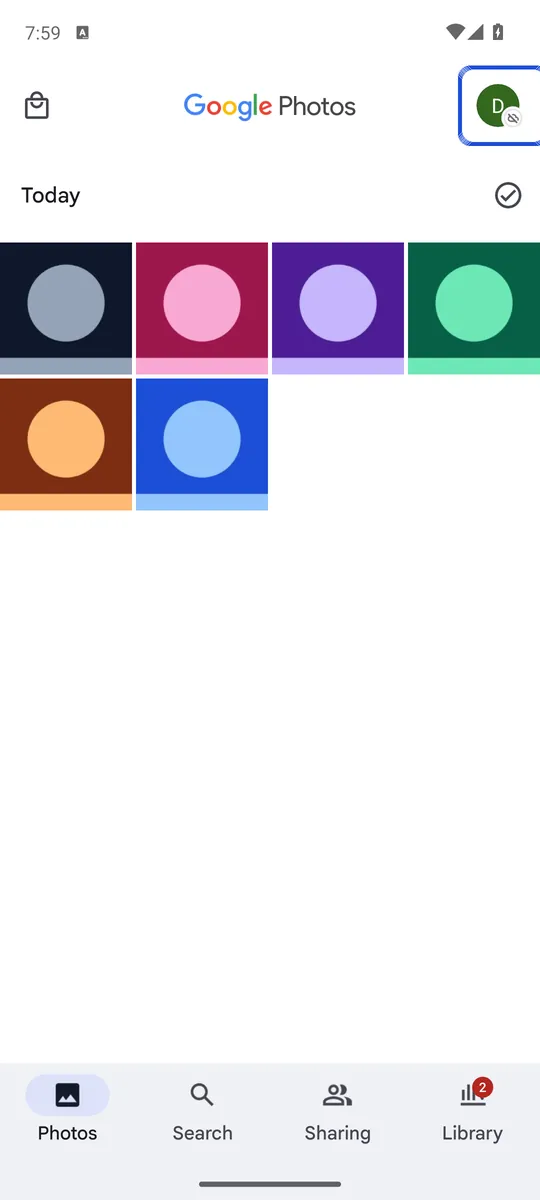
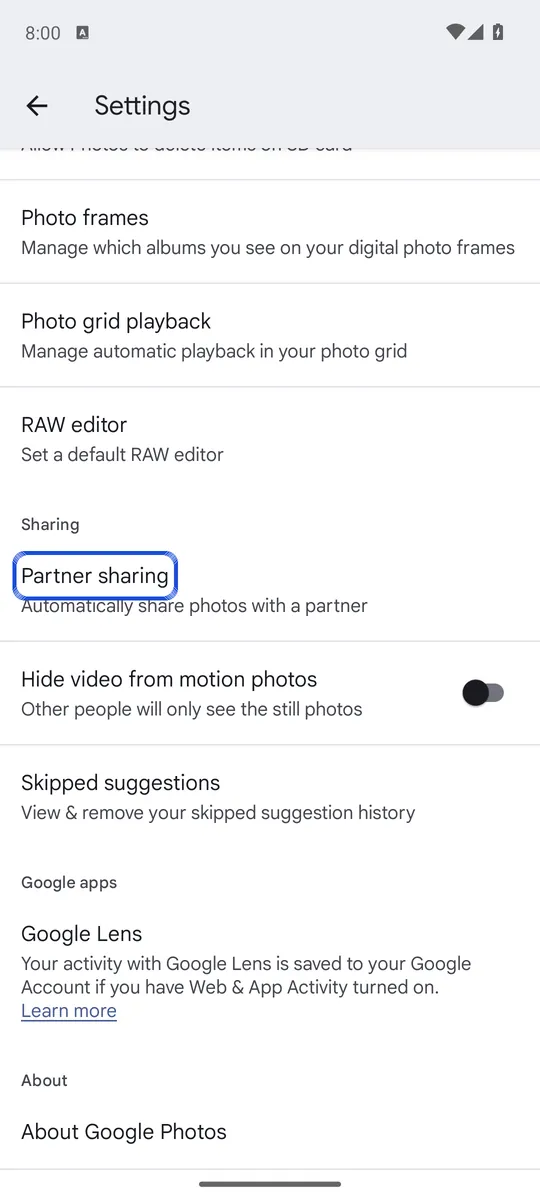
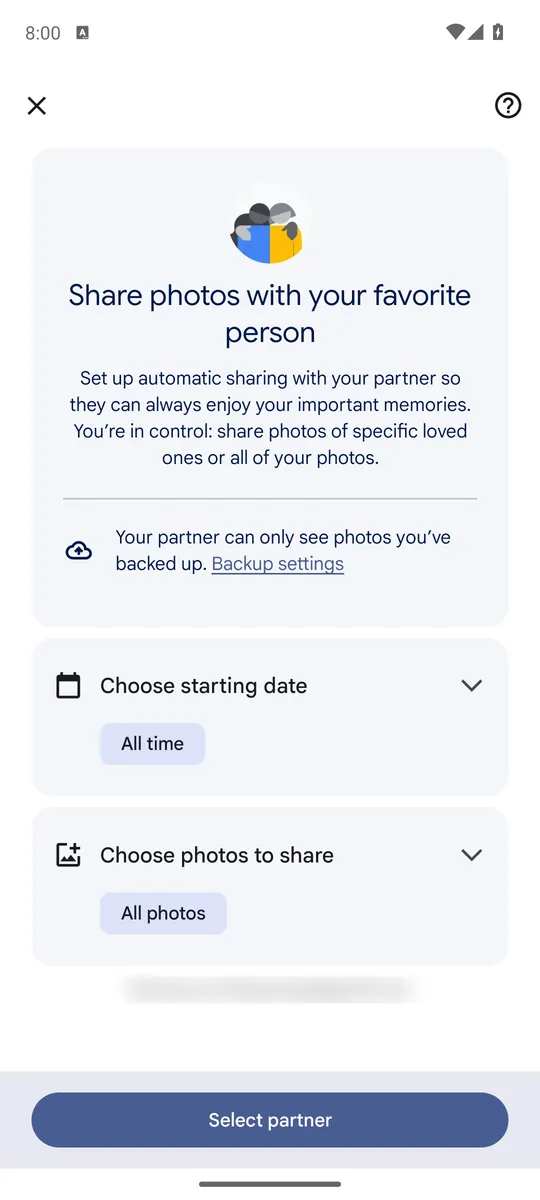
Screenshots: Google Photos 7.95 on an Android 14 emulator signed in to an empty test account, captured 8 October 2026. The test account's email is blurred. Your menus may be grouped differently: Google changes the settings layout between app versions.
Your partner can no longer open the photos you shared, and you lose access to theirs. To keep the partnership but stop sending new photos, tap More on the same screen, then Stop sharing your photos. Either way, photos your partner already saved to their own library stay there.
How to keep photo locations private in Google Photos
Location is the detail most people forget is attached to a photo. Google Photos gives you three controls (Google Photos Help):
- Shared albums: in the album, tap Share, then Options, and turn off Share photo locations.
- Conversations: in Photos settings, go to Sharing, then Manage sharing activity, then Conversations. Pick the conversation, tap your profile picture and turn off Share photo locations.
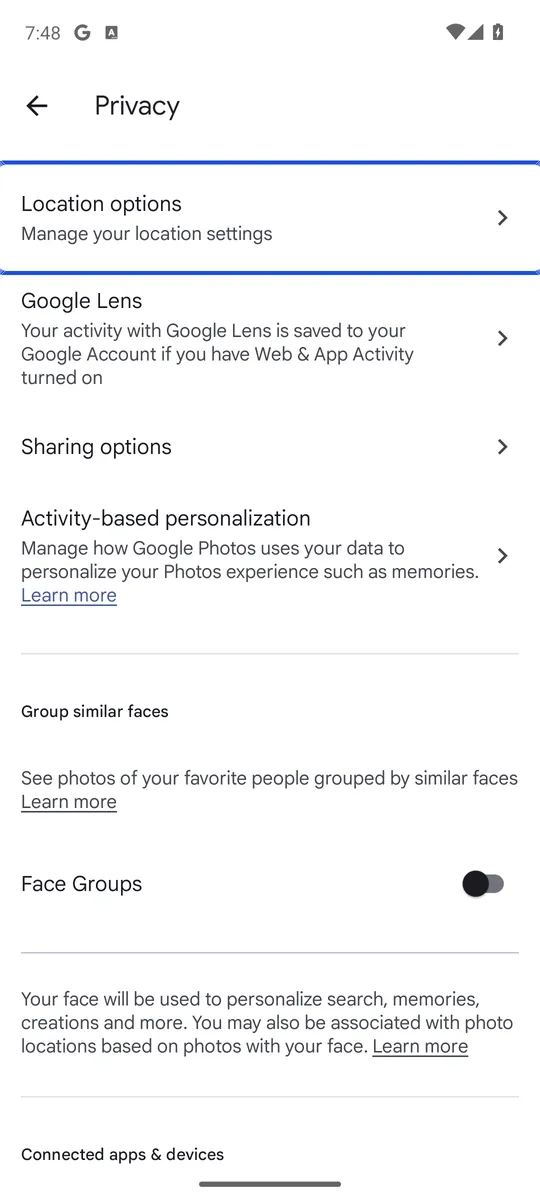
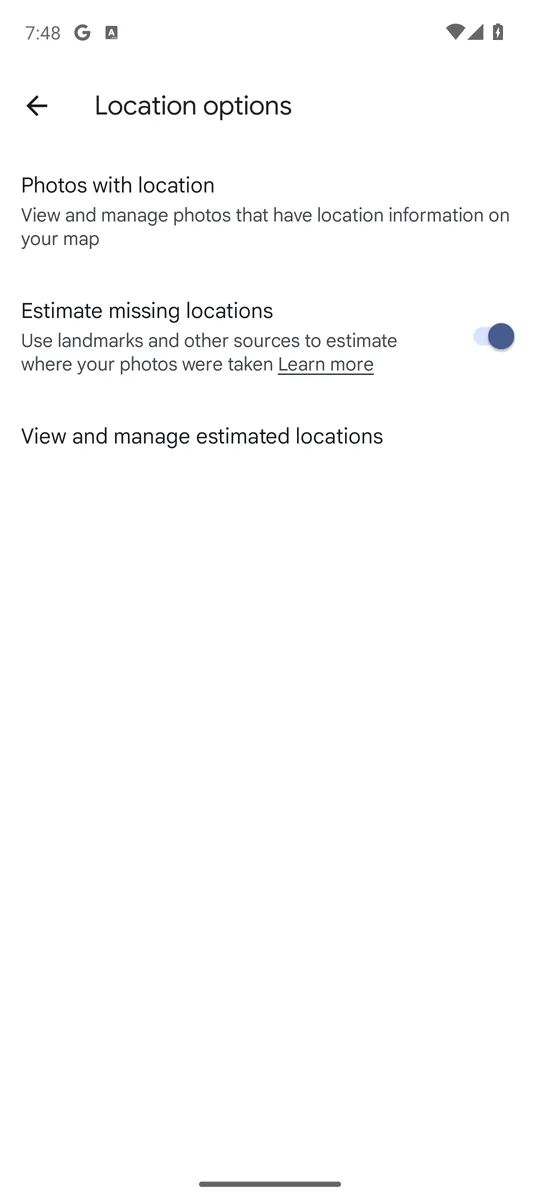
- Estimated locations: in Photos settings, go to Privacy, then Location options, and turn off Estimate missing locations. Google says estimated locations are never shared anyway, even when you share location details.
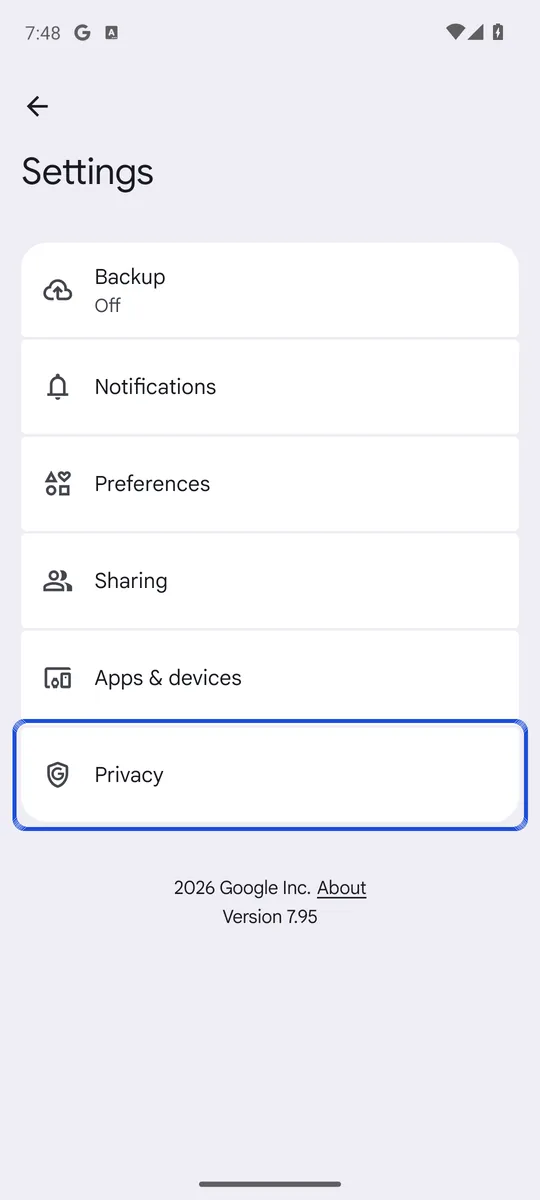
Google Photos can only remove locations it estimated or that you added. A location your camera saved cannot be removed in Google Photos. To stop new photos carrying one, turn off location in your camera app’s settings; the exact option differs by phone maker. Our guide on how to remove location from photos lists the setting for each maker and the ways to delete a camera location.
Face groups are a separate setting. Google says your face groups and labels are visible only to you (Google Photos Help). If you do not want them at all, turn off Face Groups under Privacy in Photos settings; that deletes the groups, the face models and your labels.
How to make Google Photos private on your phone with Locked Folder
Sharing settings do nothing against someone holding your phone. For that, Google Photos has Locked Folder. Photos in it do not show in your photo grid, memories, search or albums, and other apps on your phone cannot use them (Google Photos Help).
- In Google Photos, tap Collections, then Locked.
- Tap Set up Locked Folder and unlock your phone when asked.
- To move a photo in, open it or select it, tap Add to, then Move to Locked Folder, then Move.
Google says plainly that people who have access to your screen lock can unlock Locked Folder. Its backup is off unless you turn on Back up Locked Folder; without it, the photos are deleted if you uninstall Google Photos, clear its data or reset the phone. Read is Google Photos Locked Folder safe for what it does and does not protect. Photos you delete elsewhere on your phone can also linger in a trash folder; see where deleted photos stay on Android. If you would rather some photos never reach the cloud at all, here is how to stop Google Photos from backing up all your photos or a single folder.
Who else can see your Google Photos? Devices and apps
Anyone signed in to your Google Account sees your whole library, so check your account too:
- Devices. In your Google Account, open Security & sign-in, then Manage all devices under “Your devices”. Sign out of any device you do not recognize (Google Account Help).
- Apps from other developers. Review your linked apps and remove access you no longer want. Google notes that removing access does not delete data an app already has; you may need to ask its developer (Google Account Help).
- 2-Step Verification. Turn it on under Security & sign-in. Google describes it as an extra layer of security in case your password is stolen (Google Account Help).
What making Google Photos private cannot undo
Turning off sharing stops future access. It does not pull back copies. Google says that if someone already downloaded or copied photos you shared, turning off sharing does not delete them (Google Photos Help). Photos someone saved from a share become their own copy in their library (Google Photos Help).
Knowing how to make Google Photos private still leaves one gap: your most sensitive photos. The safest copy of those is one that never sits in a cloud library or behind your everyday screen lock, because Google Photos is encrypted, but not end-to-end. Our guide to hiding photos on Android compares every option by how well it protects you, from hidden albums to Private space and encrypted vaults. Lockspeare is one of those vaults: it encrypts each photo on your phone behind its own PIN or pattern, and nothing leaves the phone unencrypted.
Common questions
Can everyone see all my photos in Google Photos?
No. Other people only see photos you put in a shared album, a link or a conversation, or that you share through partner sharing. Anyone signed in to your account, or holding your unlocked phone, can see everything.
How do I stop Google Photos from being public?
A shared link works for anyone who has it, so it is the closest thing to public in Google Photos. Open each shared album, tap More, then Sharing, and turn off Link sharing. Turning it back on creates a new link, so the old one stops working.
Are my Google Photos really private?
They are private from other users unless you share them, and Google says locations are private by default. But anyone who knows your screen lock can open your phone and your Locked Folder, and people who already saved or downloaded your shared photos keep those copies.
How are people viewing my Google Photos?
Usually through something you shared (an album link, a shared album, a conversation or partner sharing) or through a device that is still signed in to your account. Check Manage sharing activity in Photos settings and the device list in your Google Account.