How to factory reset an Android phone (and wipe it before selling)
To factory reset an Android phone, open Settings and find the reset option: on a Pixel it’s System > Reset options > Erase all data (factory reset), on a Samsung Galaxy General management > Reset > Factory data reset. Before you do it, back up what you want to keep, and if you’re selling the phone, remove your Google Account and take out the SD card first.
Below is how to factory reset an Android phone step by step on Pixel and Samsung, what to do first, and what a reset leaves behind. A factory reset erases all your data from the phone’s internal storage and uninstalls your apps (Android Help).
How to factory reset an Android phone from Settings
Google says most phones are reset from the Settings app and points you to your maker’s support site for your phone’s exact steps (Android Help). Here are the steps on two common phones:
Google Pixel (Pixel Phone Help):
- Open Settings, then tap System.
- Tap Reset options, then Erase all data (factory reset).
- Tap Erase all data. If asked, enter your PIN and tap Erase all data again.
- When the reset finishes, restart the phone.
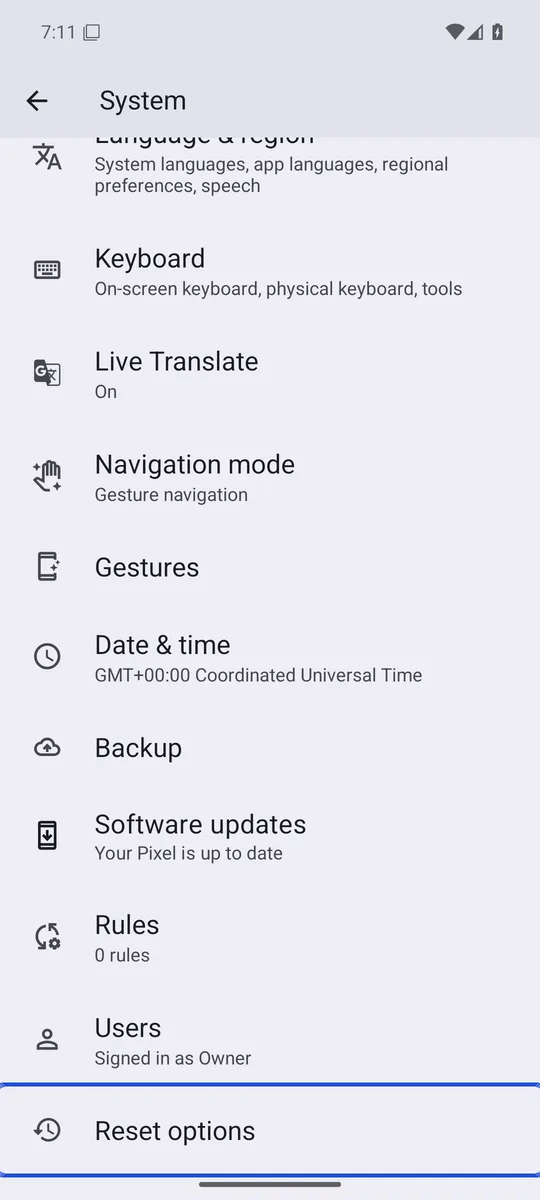
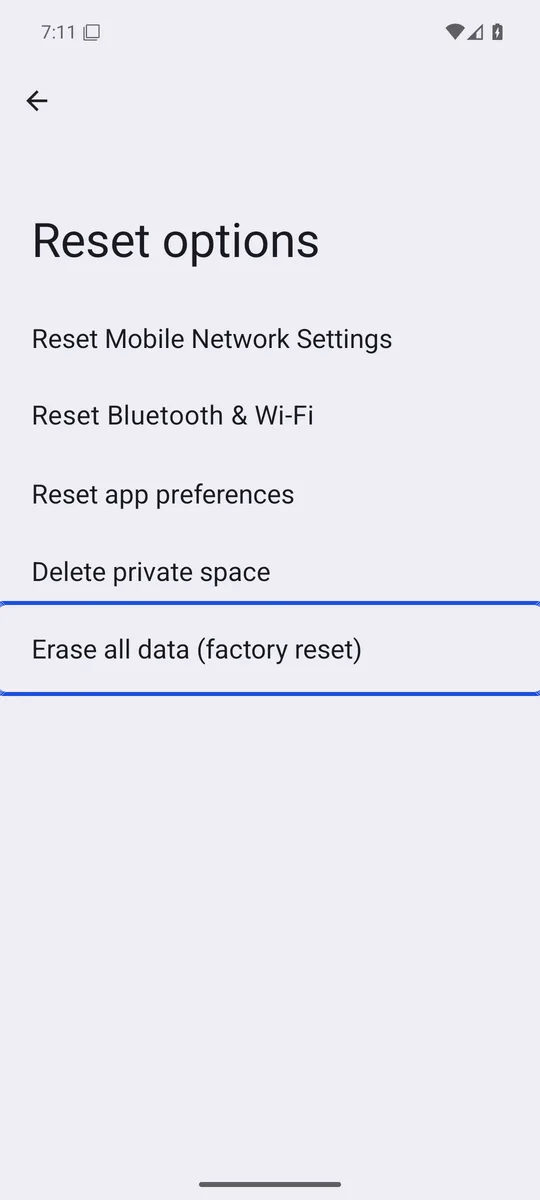
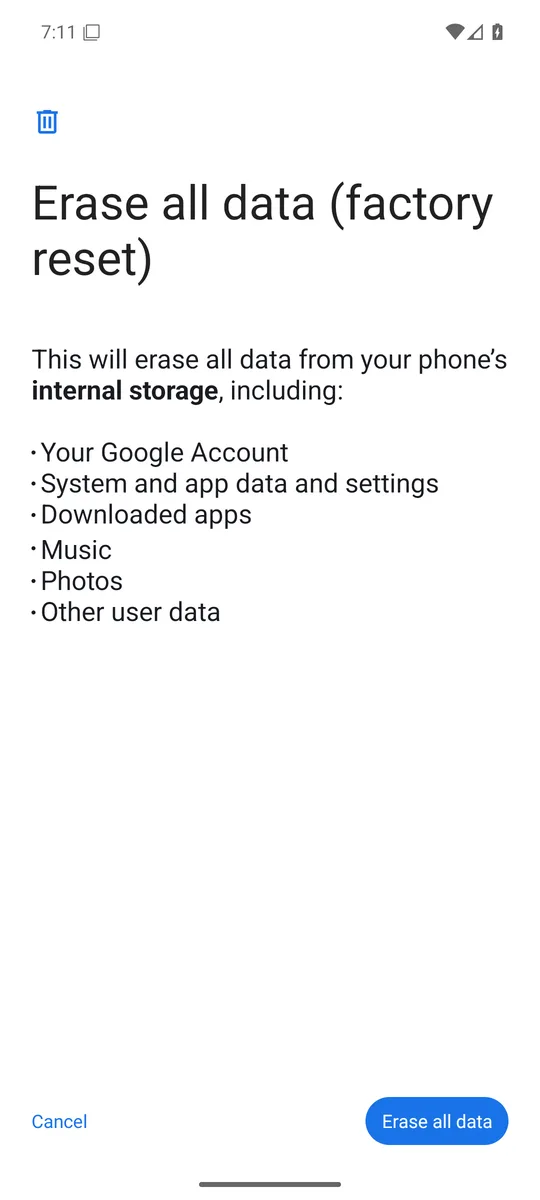
Screenshots: Android 16 emulator (Google APIs), captured 3 November 2026. We stopped before tapping Erase all data.
Samsung Galaxy (Samsung):
- Open Settings, then tap General management.
- Tap Reset, then Factory data reset.
- Tap Reset, then Delete all.
- If a Samsung account is signed in, enter its password to finish.
Samsung notes that menu names vary by model and software version. Google says the reset can take up to an hour, so charge the phone to at least 70% and stay on Wi-Fi or mobile data (Android Help).
What to do before you factory reset your Android phone
- Back up what you want to keep. Google recommends backing up to your Google Account first (Android Help). Photos already in Google Photos stay in your account; our guide on deleting photos from your phone but not Google Photos shows how to check what is backed up.
- Save the photos backups don’t reach. Google Photos Locked Folder items are deleted by a factory reset if Locked Folder backup is off (Google Photos Help); see whether Locked Folder is safe for how its backup works. Samsung says a Smart Switch backup to a computer may not include Secure Folder content or hidden files (Samsung); our Samsung hidden photos guide covers where those photos live.
- Check how your vault apps move to a new phone. Lockspeare, for example, leaves its vaults out of Android’s device backup: a vault moves to a new phone as its own encrypted backup file, opened with the vault’s 12-word recovery phrase. If you’re unsure how your vault app restores, read what happens if you forget a photo vault password before you wipe anything.
- Know your Google Account and screen lock. You’ll need the Google Account username and password, and your PIN, pattern or password. If you changed your Google password recently, Google says to wait 24 hours before resetting (Android Help).
How to wipe an Android phone before selling it
If the phone is going to someone else, do three more things:
- Remove your Google Account. Samsung’s steps: Settings > Accounts and backup > Manage accounts, pick the Google account, then Remove account. Remove every Google account on the phone (Samsung). Removing the account before the reset turns off Factory Reset Protection, the lock that would otherwise ask the buyer for your Google login (Samsung).
- Take out the SD card. A factory reset does not erase a memory card, so remove it or format it separately (Samsung). For photos you deleted that may still sit in a trash folder or a cloud backup, see where deleted photos stay on Android.
- Reset from Settings, not the buttons. Google says to use the reset in the Settings app for trade-ins (Pixel Phone Help). Samsung says Factory Reset Protection only kicks in when the phone is reset some other way (Samsung).
Already handed the phone over? Sign it out of your account: on myaccount.google.com, go to Security & sign-in, then Manage all devices under Your devices, pick the phone and tap Sign out (Google Account Help).
Does a factory reset delete everything on an Android phone?
On a current phone, it deletes everything on internal storage in a way that is hard to undo. Android’s compatibility rules require every phone to offer a factory data reset that erases all data on the user data partition, using a method that meets industry standards such as NIST SP800-88 (Android CDD). On top of that, every phone that launched with Android 10 or later must encrypt your files, with keys that can be securely deleted where the phone’s hardware supports it (Android Open Source Project).
That wasn’t always true. A 2015 University of Cambridge study of phones running Android 2.3 to 4.3 found flawed resets that left Google login tokens, emails, photos and other data recoverable (Simon and Anderson). If you are selling a very old phone, keep that in mind.
What a reset never touches:
- Your Google Account. Backed-up photos, contacts and other account data stay online and can be restored (Android Help).
- The SD card, as above.
- Copies elsewhere: photos you shared, sent or uploaded to other services.
How to factory reset an Android phone when it’s locked
When you can’t open Settings, how to factory reset an Android phone depends on its maker. Google says you can try the power and volume buttons, and to check your maker’s support site for the exact steps (Android Help). The button combination and the recovery menu differ between brands, so don’t follow a combination meant for another phone.
A lost Pixel can also be reset remotely, but only if Find My Device was on and the phone is online (Pixel Phone Help). If the phone was stolen, lock it first and erase it only as a last resort, as our guide to Android theft protection explains.
After a reset with the buttons, expect Factory Reset Protection when the phone restarts. The phone asks you to verify the Google Account that was on it before setup continues; Samsung says phones on Android 9 and later may accept the previous screen lock instead (Samsung). If you can’t verify either, Samsung’s advice is to take the phone and proof of purchase to a service centre (Samsung).
Common questions
What does a factory reset do?
It erases everything on the phone's internal storage and uninstalls your apps and their data, so the phone starts again like new. Data stored in your Google Account, such as backed-up photos and contacts, stays in the account and can be restored when you sign in again.
Does a factory reset delete photos from Google Photos?
No. A reset erases the copies on the phone, but photos already backed up to Google Photos stay in your Google Account. Photos that were never backed up are gone, and so are Locked Folder items if Locked Folder backup was off.
Does a factory reset erase the SD card?
No. Samsung says a factory reset does not erase data on a memory card, so take the card out or format it separately before you sell or give away the phone.
How do I factory reset an Android phone when it's locked?
Google says you can try the power and volume buttons when you can't open Settings, but the button steps differ by phone, so check your maker's support page. After a reset done this way, Factory Reset Protection asks for the Google Account that was on the phone (some Samsung phones on Android 9 and later also accept the old screen lock).