Android theft protection: what it does and how to turn it on
Android theft protection is a set of free Google features that lock your phone’s screen when it is snatched from your hand, kept offline, or reported stolen, and that ask for your fingerprint or face before a thief can change key settings. Most of it is off until you turn it on in Settings > Google > All services > Theft protection (Android Help).
It works on most phones with Android 10 or later through Google Play services, with some parts needing Android 15 (Google Security Blog). It does not hide your photos from someone who knows your PIN; that part is covered below.
What is Android theft protection?
Google groups these features on one Theft protection page. All of them need a screen lock, and none of them work on Android Go phones, tablets or wearables (Android Help).
| Feature | What it does | On by default? |
|---|---|---|
| Theft Detection Lock | Uses AI, motion sensors, Wi-Fi and Bluetooth to notice a phone being snatched and carried away, then locks the screen | No (yes on new phones activated in Brazil) |
| Offline Device Lock | Locks the screen when the unlocked phone has been offline for a short time, so a thief can’t just cut the connection; up to twice in 24 hours | No |
| Remote Lock | Locks the phone from any browser at android.com/lock with your phone number; up to twice in 24 hours | No (yes on new phones activated in Brazil) |
| Failed Authentication Lock | Locks the phone after repeated wrong unlock attempts | Yes, with a screen lock |
| Protect sensitive settings | Asks for your PIN, password or fingerprint before turning off Find Hub or extending the screen timeout (Android 15 and later) | Yes |
| Identity Check | Outside your trusted places, asks for fingerprint or face (not your PIN) before sensitive changes | No, and only on some phones |
Sources: Android Help, and for the Brazil defaults Google.
Identity Check is the one that matters most if a thief has seen you type your PIN. Outside trusted places, it requires your fingerprint or face to change your screen lock, reset the phone, turn off Find Hub or theft protection, open Google Password Manager, add or remove Google Accounts, or change your Google Account password (Android Help). In a January 2026 update for Android 16, Google extended it to apps that use Android’s biometric prompt, including third-party banking apps, and made wrong screen-lock guesses lock you out for longer (Google).
How to turn on Android theft protection
These are Google’s steps; names can differ slightly by phone (Android Help):
- Open Settings and tap Google, then All services.
- Under Personal & device safety, tap Theft protection.
- Turn on Theft Detection Lock. If the switch is grayed out, your phone doesn’t support it.
- Turn on Offline Device Lock.
- Tap Remote Lock and turn it on. If your number isn’t verified, tap Verify number. You can also add an optional security question that anyone using android.com/lock must answer.
- If Identity Check is listed, tap it and follow the setup: you need a Google Account, a screen lock, a fingerprint or face, and at least one trusted place such as home.
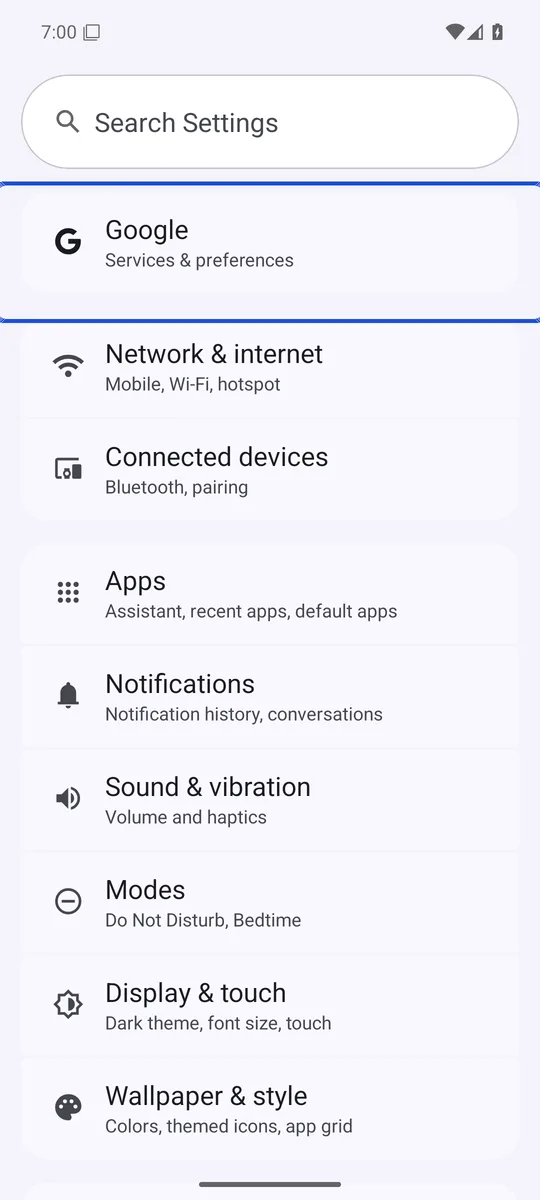
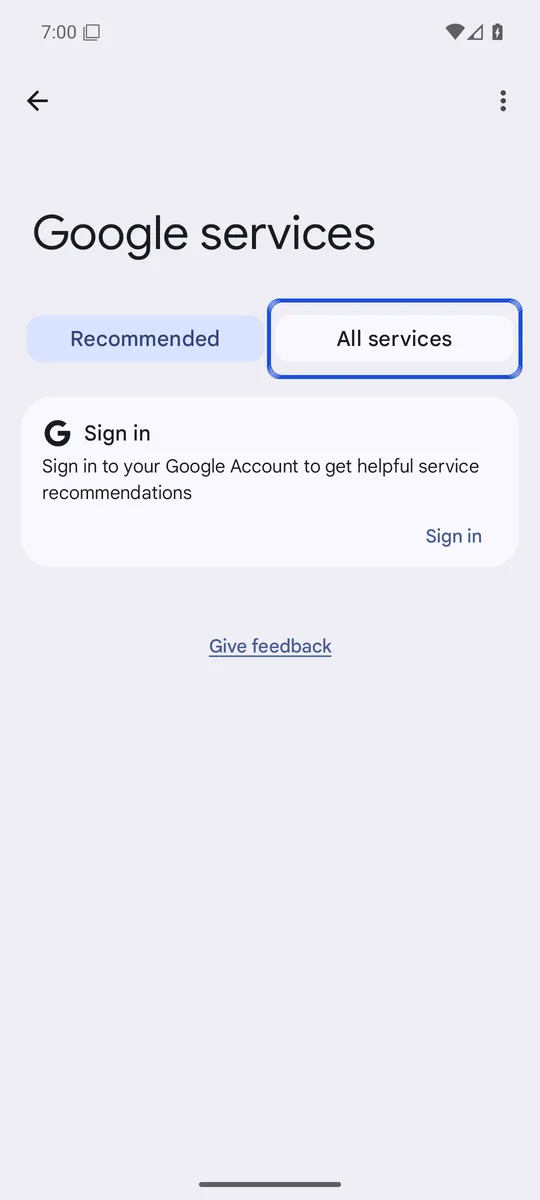
Screenshots: Android 16 emulator (Google APIs), captured 10 November 2026. The emulator has no SIM or Google Account and doesn't show the Theft protection page itself, so the later steps are text only.
Remote Lock also needs an active SIM in the phone, Find Hub turned on and an internet connection; a phone that is offline locks when it reconnects (Android Help).
Then check Find Hub, which you need for locating or erasing the phone later: Settings > Security > Find Hub > Allow device to be located, with location turned on (Android Help). Google also advises a PIN of six or more digits instead of a short one (Android Help).
Where is theft protection on Samsung Galaxy phones?
Samsung puts Identity Check in its own settings. Samsung’s steps (Samsung):
- Open Settings and tap Security and privacy.
- Tap Lost device protection, then Theft protection.
- Tap Identity check, then Continue, and sign in to your Samsung Account, add fingerprints and set up Safe Places.
Samsung says Wi-Fi, Bluetooth and location need to be on, and that the features vary by model and software version (Samsung). They arrived with One UI 7 on compatible Galaxy phones, along with Security Delay, a one-hour wait before someone can reset your biometric data (Samsung Newsroom).
What Android theft protection does not protect
Android theft protection locks the phone and guards your accounts. It does not decide who can see your files once the phone is unlocked.
- Theft Detection Lock can miss. It does nothing while the screen is already locked, and may not trigger when the phone has a stable Wi-Fi or Bluetooth connection, or after it locked several times in a short period (Android Help).
- Offline Device Lock only acts on an unlocked phone. The phone has to be unlocked when it loses its connection (Android Help).
- Identity Check works only outside trusted places. And even outside them, Google says Private space, multi-user mode and payment autofill in apps still open with your PIN, pattern or password (Android Help).
- Your gallery is not on the list. Google’s list of actions that need biometrics doesn’t include opening apps like your gallery or Google Photos. Anyone who knows your screen lock can scroll through them; our guide on how to check if someone used your phone shows the traces that leaves.
So if your photos are what you’d mind losing to a thief, put them behind a second lock. Private space on Android and Google Photos Locked Folder each have a lock that can differ from your screen lock, and app locks on Android put a check in front of single apps. An encrypted vault such as Lockspeare has its own PIN or pattern, separate from the screen lock, so knowing the phone’s PIN is not enough to open it. Our guide on how to hide photos on Android compares all of these.
What to do when your Android phone is stolen
Google’s order of steps (Android):
- Find it. Open the Find Hub app or android.com/find on another device and sign in with the phone’s Google Account. An offline phone shows where it was last seen.
- Lock it. Go to android.com/lock, enter your phone number and pass the extra check. This works only if Remote Lock was turned on beforehand.
- Secure it in Find Hub. Secure device or Mark as lost locks the phone with its existing screen lock, signs out your Google Account, and can remove Google Wallet cards and show a contact number.
- Protect your accounts. Check your Google Account for unfamiliar activity from another device, and call your bank to freeze cards linked to Google Wallet.
- Erase it only as a last resort. Erase device factory resets the phone, and Find Hub can’t track it after that. Our factory reset guide explains what a reset deletes.
- Call your carrier and the police. The carrier can block the phone’s IMEI, and the police report needs the IMEI or serial number, which you find under About phone in Settings (Android Help).
Common questions
How do I turn on anti-theft on Android?
Open Settings, tap Google, then All services, and under Personal & device safety tap Theft protection. Turn on Theft Detection Lock, Offline Device Lock and Remote Lock, and Identity Check if your phone lists it. On Samsung Galaxy phones, Identity Check is under Settings, Security and privacy, Lost device protection, Theft protection.
If my phone is stolen, can they access my bank account?
Not without getting past your screen lock or your banking app's own login. With Identity Check on, apps that ask you to verify it's you accept only your fingerprint or face outside your trusted places, and Google says this covers third-party banking apps that use Android's biometric prompt. After a theft, Google still advises contacting your bank to freeze or cancel cards linked to Google Wallet.
Does Android theft protection work on Samsung phones?
Yes, on compatible Galaxy phones. Samsung says Theft Detection Lock, Offline Device Lock, Remote Lock and Identity Check came with One UI 7 on some compatible devices, and features vary by model and software version.
How do I turn off theft protection on Android?
Go back to Settings, Google, All services, Theft protection and turn the feature off. Turning off Identity Check asks you to verify with your fingerprint or face, or with your Google Account password (under Try another way), which needs an internet connection.