How to hide photos on Google Pixel: Locked Folder, Private space and more
To hide photos on Google Pixel, open Google Photos, select the photos, tap Add to and choose Move to Locked Folder. For a stronger wall, Pixels on Android 15 or later also have Private space, a hidden area with its own lock.
A Pixel shows your pictures in the Google Photos app (Pixel Camera Help), so most ways to hide them live there. Here are four built-in options, from the weakest to the strongest, with what each one protects against.
1. Archive: hide photos on Google Pixel from the main Photos view
Archive tidies your photo grid. It is not a lock. Google’s steps (Google Photos Help):
- Open Google Photos and select a photo.
- At the top, tap More, then Archive.
- To see archived photos, tap Collections, then Archive. To bring one back, select it, tap More, then Unarchive.
What it does not do: Google says archived photos still show in albums they were added to, in search results and in the folders on your device. Anyone holding your unlocked phone can open the Archive.
2. How to hide photos on Google Pixel in Locked Folder
Locked Folder is a protected space inside Google Photos, opened with your phone’s screen lock (Google Photos Help).
To set it up:
- Open Google Photos.
- At the bottom, tap Collections, then Locked.
- Tap Set up Locked Folder and unlock your phone when asked. If you have no screen lock, you will need to set one first.
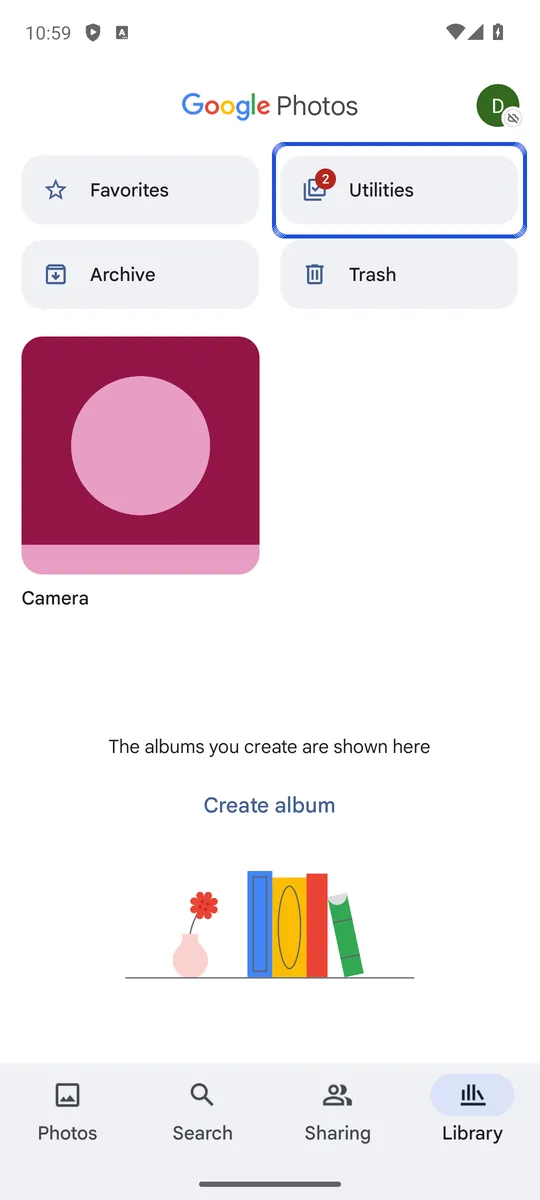
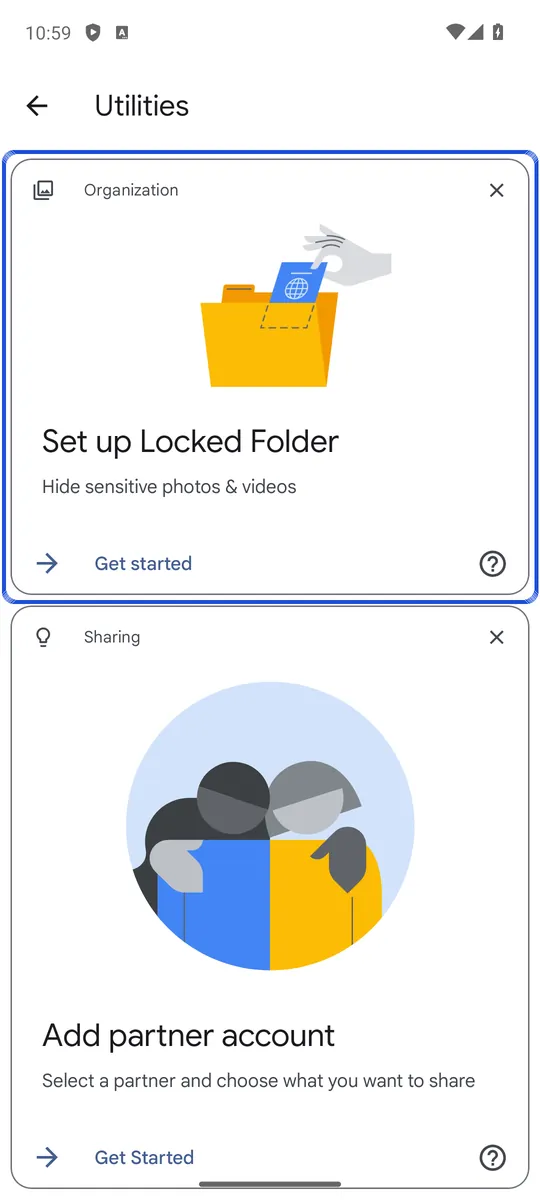
Screenshots: Google Photos 6.29 on an Android 14 emulator (Google Play image), captured 14 October 2026. In this version the tab is called Library and Locked Folder sits under Utilities until it is set up; newer versions call the tab Collections. Google Photos blocks screenshots inside Locked Folder itself, so the screens stop at the setup card.
To move photos into it:
- In Google Photos, tap Photos and select the photos or videos.
- At the bottom, tap Add to, then Move to Locked Folder.
- Tap Move.
What it protects against: Google says items in Locked Folder don’t appear in the Photos grid, memories, search, albums or shared items, and other apps that can read your photos can’t see them. You also can’t share them from there until you move them out.
What it does not do: it has no password of its own. Google says the Locked Folder password is the same as your device screen lock, so anyone who knows your screen lock can open it. Copies, edited versions and copies saved by people you shared with are not moved. And if Locked Folder backup is off, its photos live only on that phone: you lose them if you uninstall Google Photos, clear its data, factory reset or lose the phone. Our guide on whether Google Photos Locked Folder is safe goes deeper on backup and what Google can see.
Hide photos on Google Pixel as you take them
On a Pixel 4 or later, you can also hide photos on Google Pixel straight from the camera, so a new photo never sits in your main grid (Google Photos Help):
- Open the Pixel Camera app and take the photo.
- Next to the shutter, touch and hold the preview of the last photo or video.
- In the popup, tap Locked Folder.
3. How to hide photos on Google Pixel in Private space
Private space is a separate, hidden area of your phone for apps and files. Google’s Pixel help says it needs Android 15 or later and the main user (not a guest), and it is not available on managed phones (Pixel Phone Help).
To set it up:
- Open Settings and tap Security & privacy.
- Under “Privacy”, tap Private space and unlock with your screen lock.
- Tap Set up, then Got it. Google suggests a separate Google Account for the space, but it is optional.
- Tap Choose new lock to give the space its own PIN, pattern or password, or Use device screen lock.
- Tap Done.
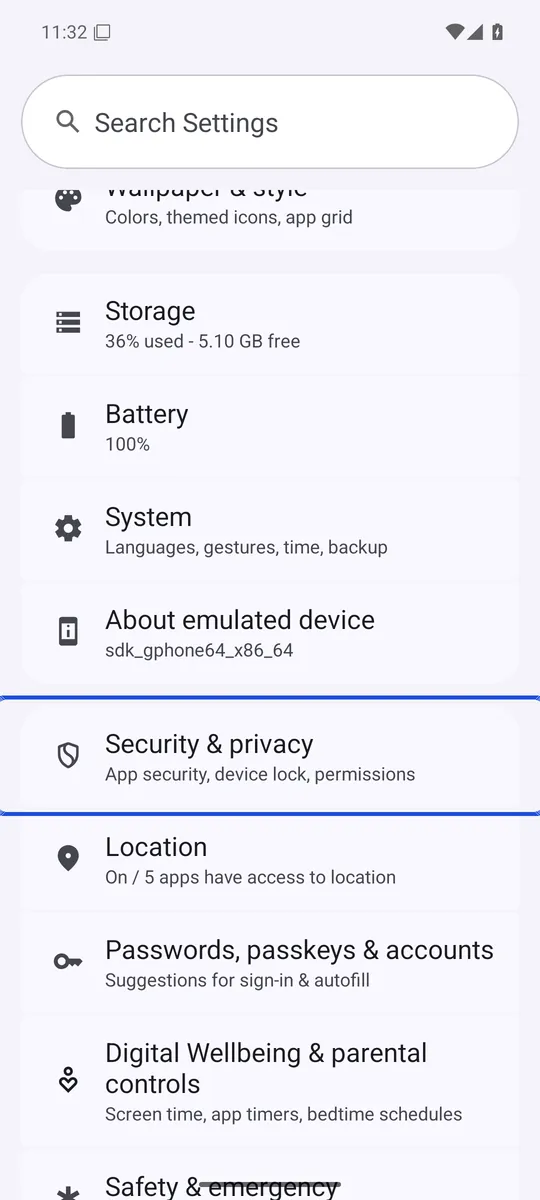
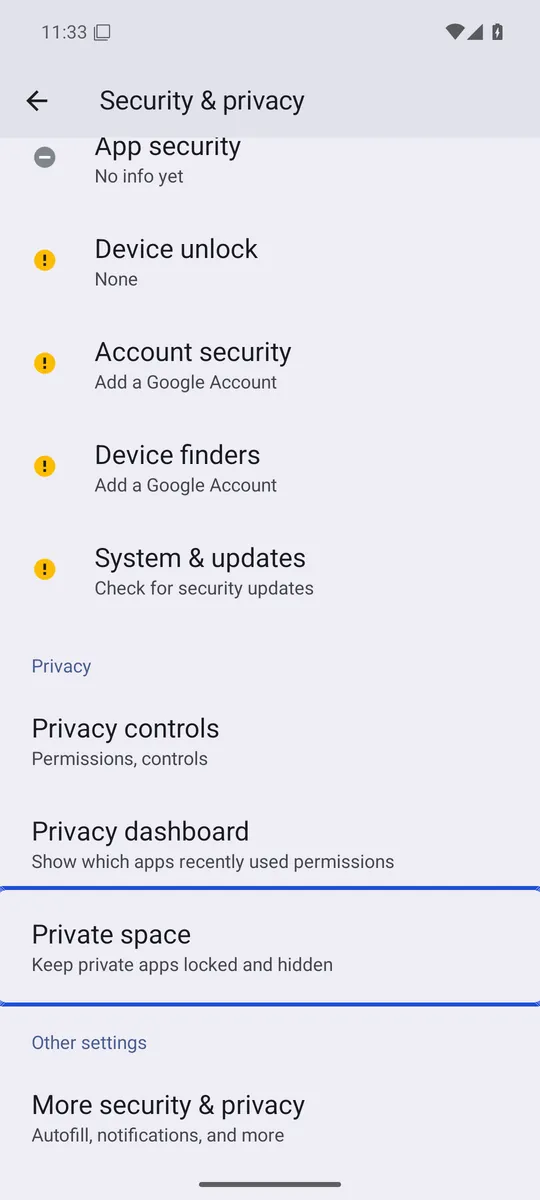
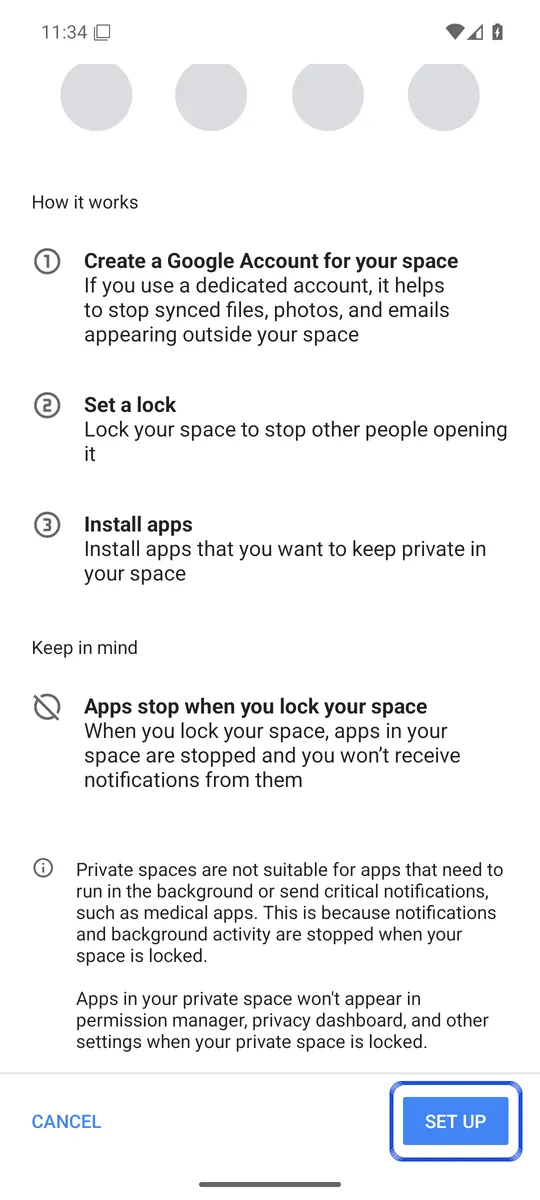
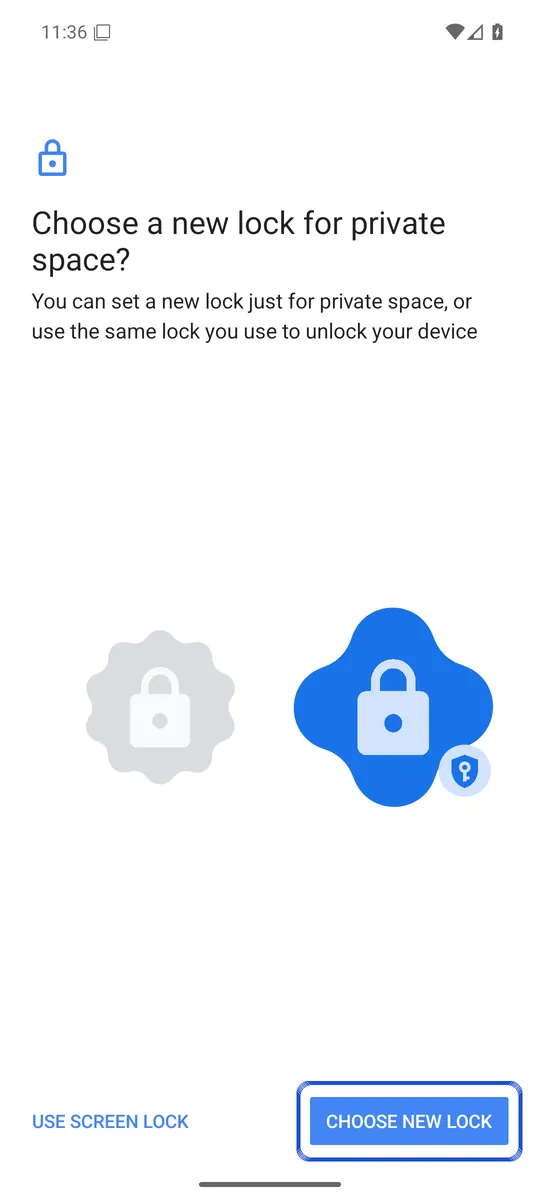
Screenshots: stock Android 16 emulator (Google APIs), captured 6 October 2026, not a Pixel; Pixel phones show the same Settings path.
To move photos into it: scroll your app list to Private space, unlock it, tap + Add, then Add files. Pick the photos and choose Copy or Move. Move deletes the original from your main gallery; either way the files land in the Downloads folder of the private space (Android). To browse them inside the space, you can install a gallery app there with + Install.
To hide the space itself: unlock it, tap its settings icon and turn on Hide private space when it’s locked.
What it protects against: when the space is locked, its apps are stopped and it is hidden from search, recents, sharing and Settings. Android’s documentation says content and accounts are kept separate from the main space, and other apps only reach it through the photo picker or share sheet while it is unlocked (Android Open Source Project).
What it does not do: Google says private space data is not part of your device backup, and restoring a backup does not bring it back. If you forget its lock, there is no recovery. Google also notes it can’t always hide that the space exists, for example from someone with computer access to the phone. More in our guide to Private space on Android.
4. Hide photos on Google Pixel with Safe folder in Files by Google
Google’s Files by Google app has a Safe folder with its own PIN or pattern, for Android 8.0 and up (Files by Google Help).
- Open Files by Google and scroll to “Collections”.
- Tap Safe folder, choose PIN or Pattern and set it.
- To add photos, touch and hold them in Files, tap More, then Move to Safe folder.
Google says files there don’t show in search or categories, other apps can’t open them and screenshots are blocked. But there is no backup to Google Drive from Safe folder, and if you forget the PIN or pattern you can’t get the files back.
Ways to hide photos on Google Pixel compared
| Feature | Archive | Locked Folder | Private space | Safe folder |
|---|---|---|---|---|
| Lock | None | Your screen lock | Own lock or screen lock | Own PIN or pattern |
| Hidden from other apps | No | Yes | Yes, while locked | Yes |
| Shows in search | Yes | No | No, while locked | No |
| Backup | Not stated | Optional, to Google Photos | Not in device backup | No Google Drive backup |
| Needs | Google Photos | Google Photos | Android 15 or later | Android 8.0 or later |
Which option to use on your Pixel
How private you need to be decides how to hide photos on Google Pixel:
- To tidy your photo grid, Archive is enough.
- To keep photos from someone who borrows your phone but does not know your screen lock, use Locked Folder. It is the quickest and can back up.
- To keep photos from someone who knows your screen lock, use Private space or Safe folder with a different lock, or a vault app with its own lock. Our guide on how to hide photos on Android compares these with vault apps.
Lockspeare is one such vault: it encrypts each photo, opens with its own PIN or pattern, and its built-in camera encrypts photos as you take them, so they never reach your gallery or Google Photos backup.
After you hide them: copies to check
Moving a photo out of view on your phone may not remove every copy. Check two places:
- Backups. A photo backed up to Google Photos before you hid it is still in your account. Our guide on how to make Google Photos private covers sharing and backup settings.
- The Trash. If you deleted an original after copying it somewhere private, it can wait in Trash. See recently deleted photos on Android.
Common questions
Does Pixel have a secret folder?
Yes. Google Photos on a Pixel has Locked Folder, which keeps photos out of your photo grid, albums and search and away from other apps. Pixels on Android 15 or later also have Private space, a separate hidden area for apps and files.
Does Google Photos have a secret folder?
Locked Folder is the closest thing. It opens with your phone's screen lock, and Google says its items don't show in the Photos grid, memories, search, albums or shared items. Archive is weaker, because archived photos still appear in albums, search and your device folders.
How do I see hidden photos on my Pixel?
For archived photos, open Google Photos, tap Collections, then Archive. For Locked Folder, tap Collections, then Locked, and unlock with your screen lock. For Private space, scroll to Private space in your app list and unlock it.
Can I use a different password for Locked Folder?
No. Google says the Locked Folder password is the same as your device screen lock, so anyone who knows your screen lock can open it. Private space and Safe folder in Files by Google can each have a lock of their own.